- Contents
- Overview
- Prerequisites
- Installation
- Initial configuration
- Daily usage
- Sync queue and history
- Payments
- Maintenance
- Permissions
- Known limitations
- FAQ
- An invoice has been pending for a long time. What should I check?
- An invoice is failed. What should I do?
- Is TaxOrigin mapping mandatory?
- Payments are not imported although the customer has paid. Why?
- Can I send several invoices at once?
- Can I cancel a send?
- Can an already sent invoice be re-synchronised?
- What if a third party is linked to the wrong Horus company?
- Does the module create duplicate third parties in Horus?
- Is analytic mapping mandatory?
- What happens if an analytic code is not mapped?
- When should VAT tolerance or unbalanced-entry advanced options be used?
- What should I do after upgrading the module?
- Support
DoliHorus - Horus accounting synchronisation for Dolibarr
DoliHorus connects Dolibarr to Horus, the Belgian accounting software, to automate accounting handover: sales invoices, purchase invoices, credit notes, payments, third parties, TaxOrigin tax codes and analytic codes.
The module integrates directly into Dolibarr through hooks, triggers, extra fields and scheduled jobs. It does not modify Dolibarr core files and communicates with Horus through the official OAuth2 flow.
Contents
- Overview
- Prerequisites
- Installation
- Initial configuration
- Daily usage
- Sync queue and history
- Payments
- Maintenance
- Permissions
- Known limitations
- FAQ
- Support
Overview
DoliHorus is designed to avoid double entry between Dolibarr and Horus. You keep preparing your business documents in Dolibarr as usual; DoliHorus then transfers the accounting data to Horus with the appropriate daybooks, accounts, third parties and tax codes.
Main features:
- Customer invoices: manual or bulk sending of validated sales invoices.
- Customer credit notes: transfer to the configured Horus daybooks.
- Supplier invoices: synchronisation of purchase invoices and supplier credit notes when enabled.
- Payments: import of payment statuses from Horus after accounting reconciliation.
- Third parties: Dolibarr ↔ Horus matching through a local cache and scoring system.
- Belgian tax codes: TaxOrigin mapping per VAT rate/code, separately for sales and purchases.
- Analytics: optional export of a Horus analytic code from a Dolibarr invoice extra field.
- Sync queue: asynchronous processing, retry, cancellation and complete synchronisation history.
- Multi-entity: each entity can have its own Horus configuration.
Prerequisites
Before installing DoliHorus, make sure you have:
| Component | Requirement |
|---|---|
| Dolibarr | Recent version |
| PHP | PHP ≥ 7.4 |
| PHP extensions | curl, json |
| Horus | Account with API access |
| Dolibarr | Scheduled jobs enabled for automation |
You will also need:
- your Horus OAuth2 credentials: Client ID and Client Secret;
- the Horus API URL to use;
- the Horus accounting folder to synchronise;
- the sales, purchase and credit-note daybooks to use;
- the default accounting accounts;
- if you use analytics: a Dolibarr invoice extra field containing the analytic code.
Horus credentials are provided by your Horus administrator, fiduciary or Horus provider. DoliHorus does not store the user's Horus password.
Installation
- Download the module from the DoliStore.
- In Dolibarr, open Home → Setup → Modules/Applications → Deploy/install an external module.
- Select the module archive and deploy it.
- Enable DoliHorus in the modules list.
- Check that the relevant users have the required DoliHorus permissions.
No external library is required: the module uses native PHP functions and the curl extension to communicate with the Horus API.
Initial configuration
Configuration is done from the module administration pages. The recommended order is: OAuth2 connection, accounting settings, tax codes, optional analytic mapping, third-party synchronisation, then scheduled jobs.
OAuth2 connection
Open the Connection tab.
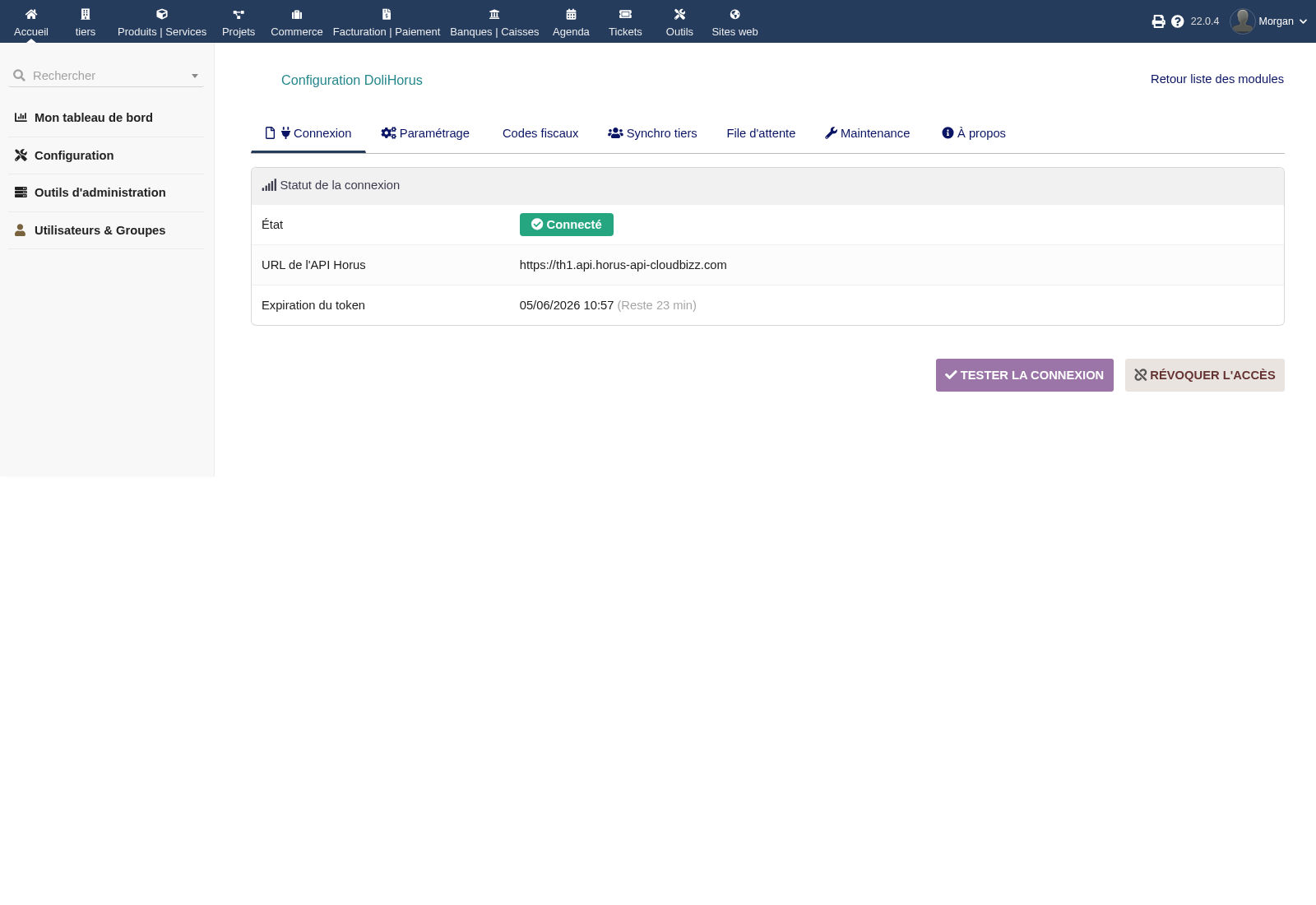
From this page, you can:
- enter the Horus API URL;
- start OAuth2 authorisation;
- test the connection;
- check token status;
- revoke access when needed;
- use advanced manual authentication when the OAuth2 callback is not reachable from the Dolibarr environment.
Once the connection is established, DoliHorus stores the required tokens and refreshes access automatically. The Horus password is not stored in Dolibarr.
Accounting settings
Open the Settings tab.
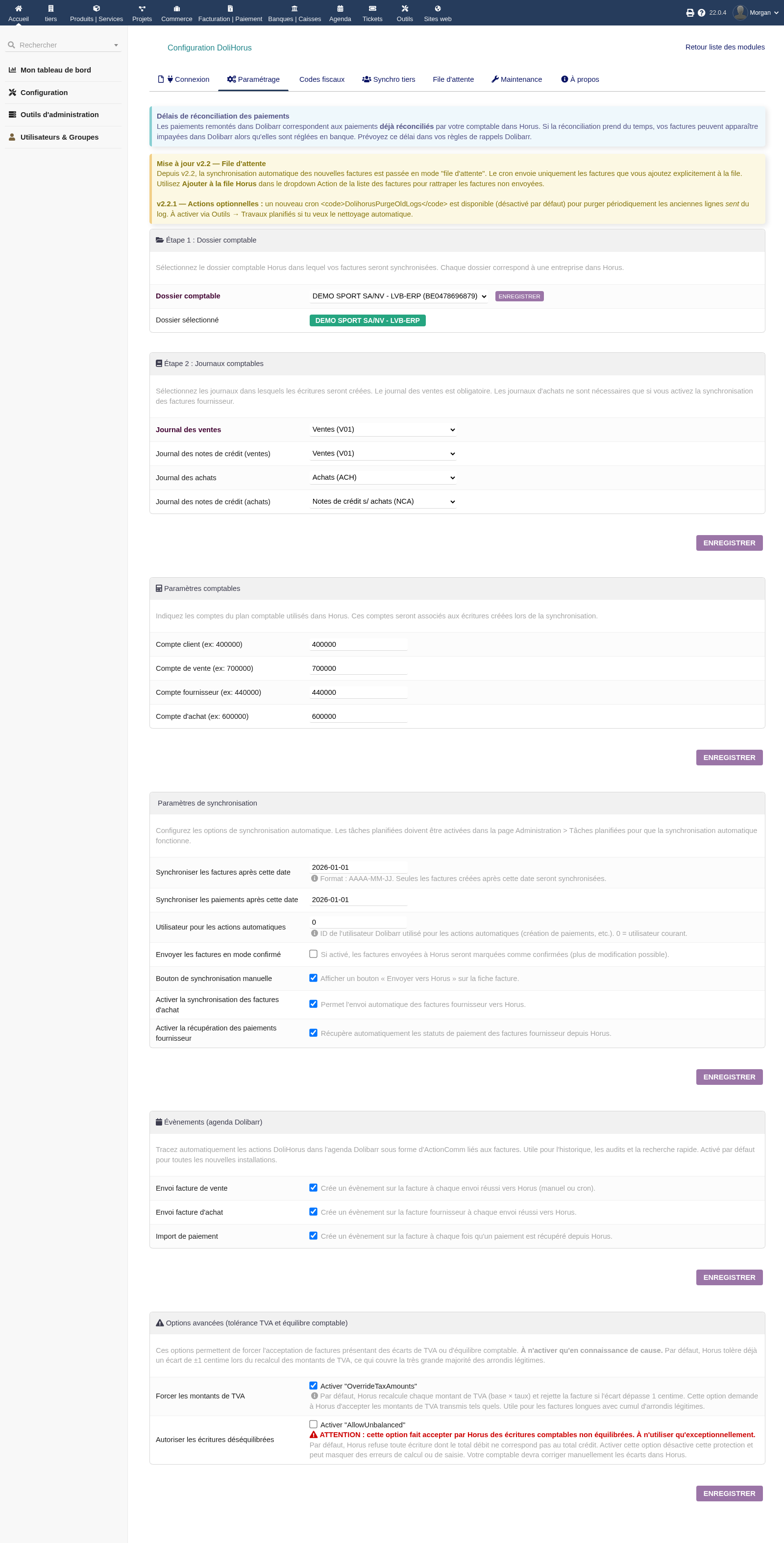
Configure at least:
- the Horus accounting folder;
- the sales daybook;
- the sales credit-note daybook;
- the purchase daybook if supplier invoices are synchronised;
- the purchase credit-note daybook;
- default accounting accounts: customer, sales, supplier, purchase;
- start dates for invoice and payment synchronisation;
- the system user used for automatic actions;
- whether the manual button appears on invoice cards;
- purchase invoice and supplier payment options when needed;
- Dolibarr agenda events for functional traceability.
Advanced VAT tolerance or unbalanced-entry options should remain exceptional. Enable them only after accounting validation, because they bypass checks intended to detect inconsistencies.
TaxOrigin tax codes
Open the Tax codes tab.
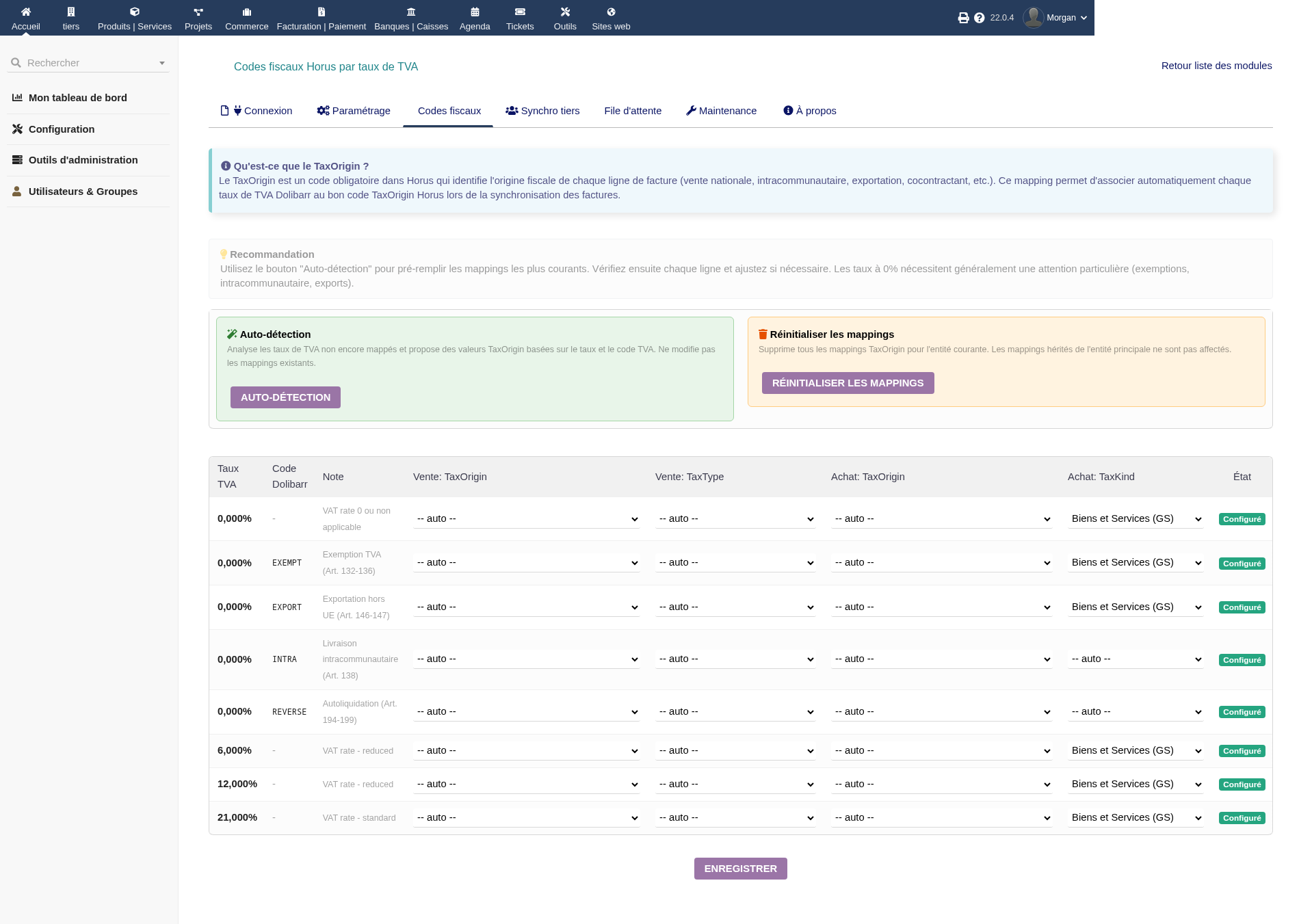
Horus expects a TaxOrigin code on invoice lines. DoliHorus lets you map each Dolibarr VAT rate or VAT code to the corresponding Horus code, separately for sales and purchases.
Recommended steps:
- Run auto-detection to pre-fill common cases.
- Review every rate used on your invoices.
- Pay special attention to zero-rate cases: intra-community, export, reverse charge, exemption.
- Check both sales and purchase columns.
- Save, then test with a representative invoice.
A missing TaxOrigin mapping can block invoice transfer to Horus. This step is therefore required before production use.
Analytic mapping
DoliHorus can send a Horus analytic code on sales invoice lines. The feature is optional and disabled by default.
Preparation in Dolibarr:
- create or identify an invoice extra field containing the analytic code;
- optionally create a second extra field containing a readable label;
- confirm with your accountant which Horus analytic schema should be used.
Two operating modes are available:
- Explicit mode: map each Dolibarr code to a Horus schema and Horus section. This is the most controlled mode.
- Automatic mode: choose a default Horus schema, and the Dolibarr code becomes the Horus section. The module can create the section if it does not already exist.
If no analytic code is set, the invoice is sent without analytics. In explicit mode, if the code is not mapped, the send continues without analytics and a warning is logged.
Currently, the analytic mapping documented here applies to sales invoices. Supplier invoices should not be presented as covered by this feature until explicitly supported.
Third-party sync
Open the Third-party sync tab.
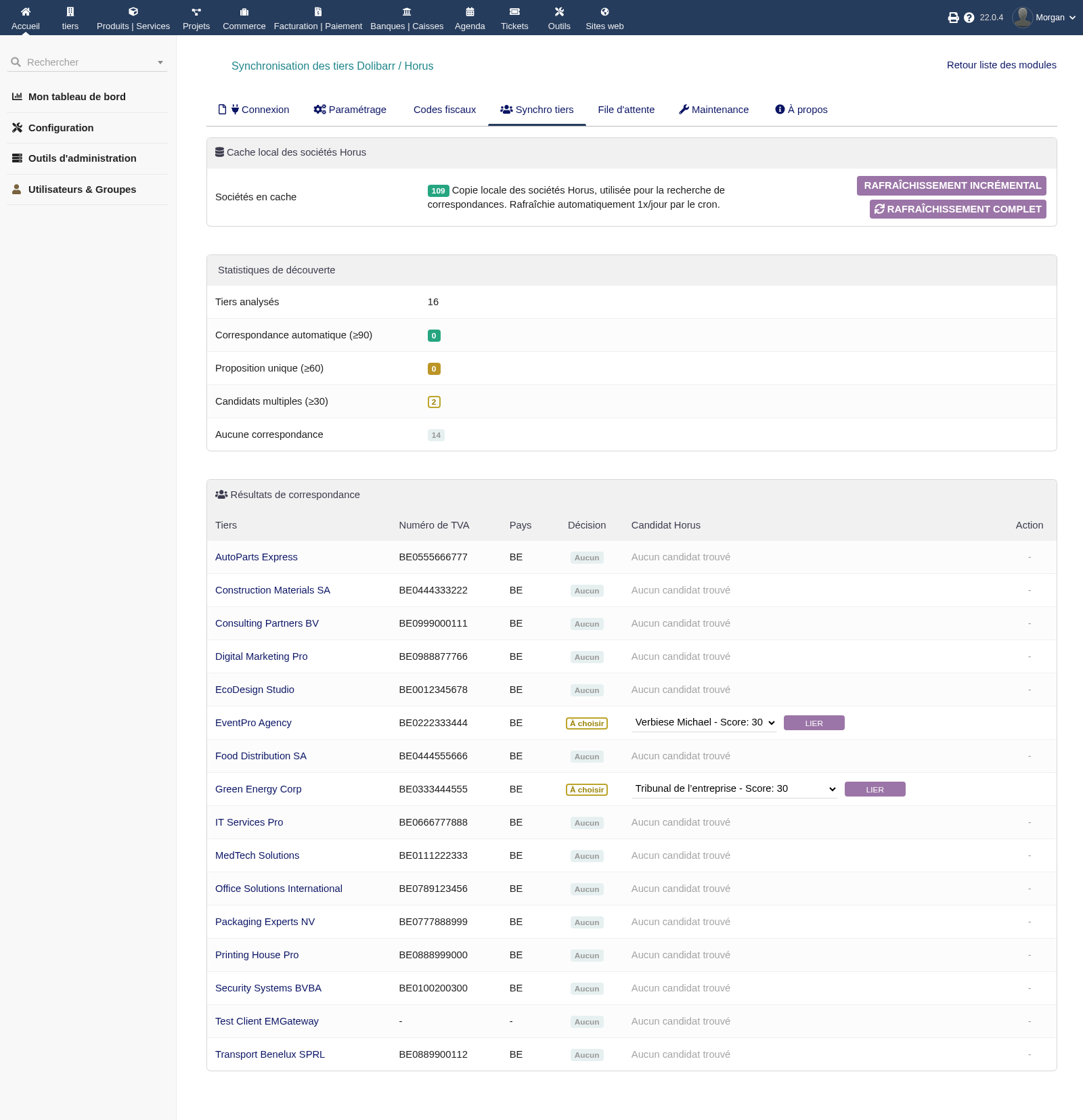
DoliHorus maintains a local cache of Horus companies to avoid slow searches and make Dolibarr third-party matching easier.
Matching uses, among other signals:
- VAT or company number;
- IBAN;
- email address;
- exact or fuzzy name;
- postcode;
- address;
- city;
- country.
Depending on the score, the module can automatically link the third party, suggest one candidate, show several candidates or report that no match was found.
For ambiguous cases, select the correct Horus candidate and click Link. The link can then be managed from the Horus tab on the third-party card.
Daily usage
Send an invoice manually
On a validated customer invoice, click Send to Horus.
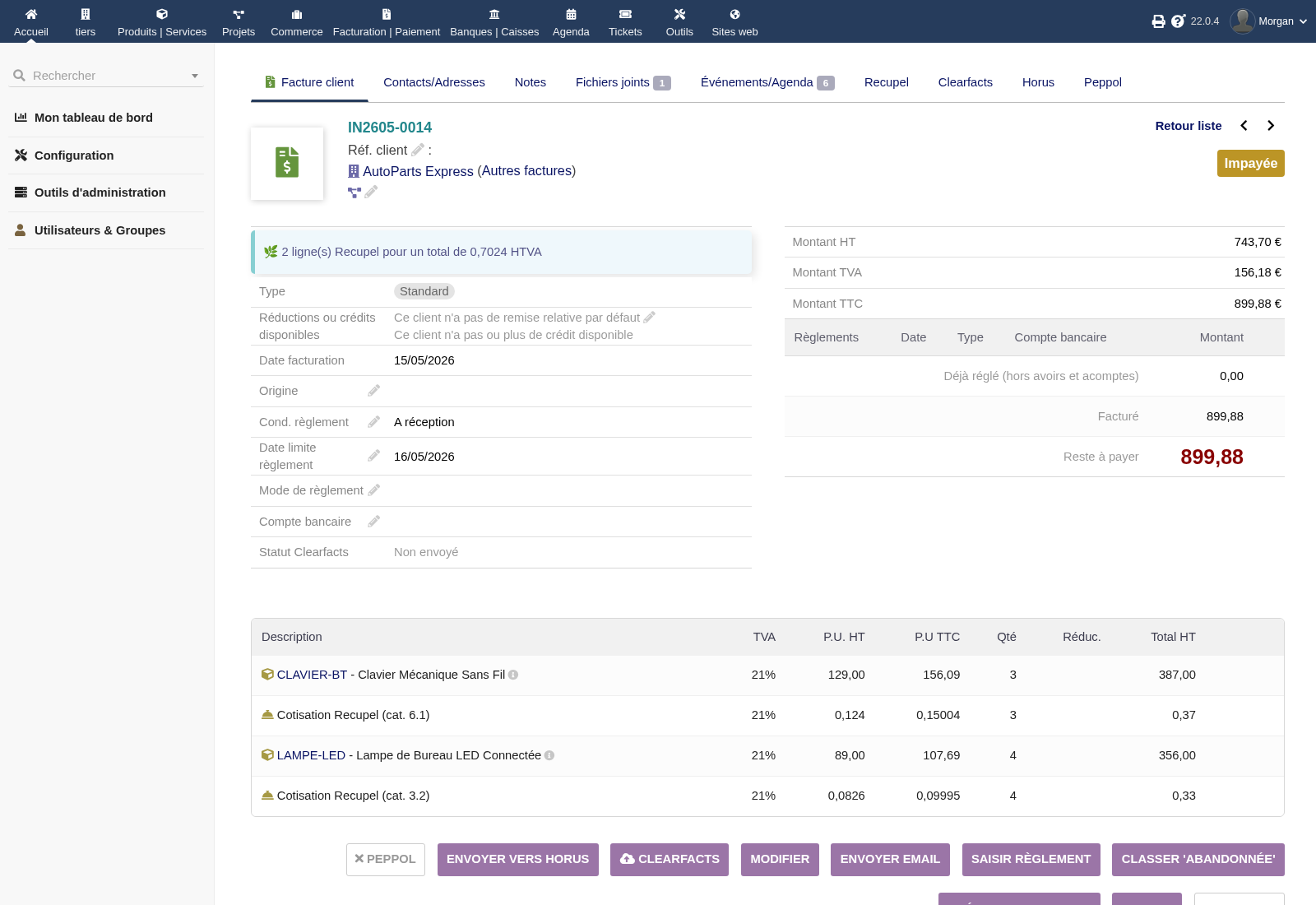
Manual sending is immediate. It is useful to:
- test the configuration;
- send an urgent invoice;
- process a special case;
- diagnose an error with direct feedback.
Add several invoices to the Horus queue
From the invoice list, tick the invoices to process and choose the bulk action Add to Horus queue.
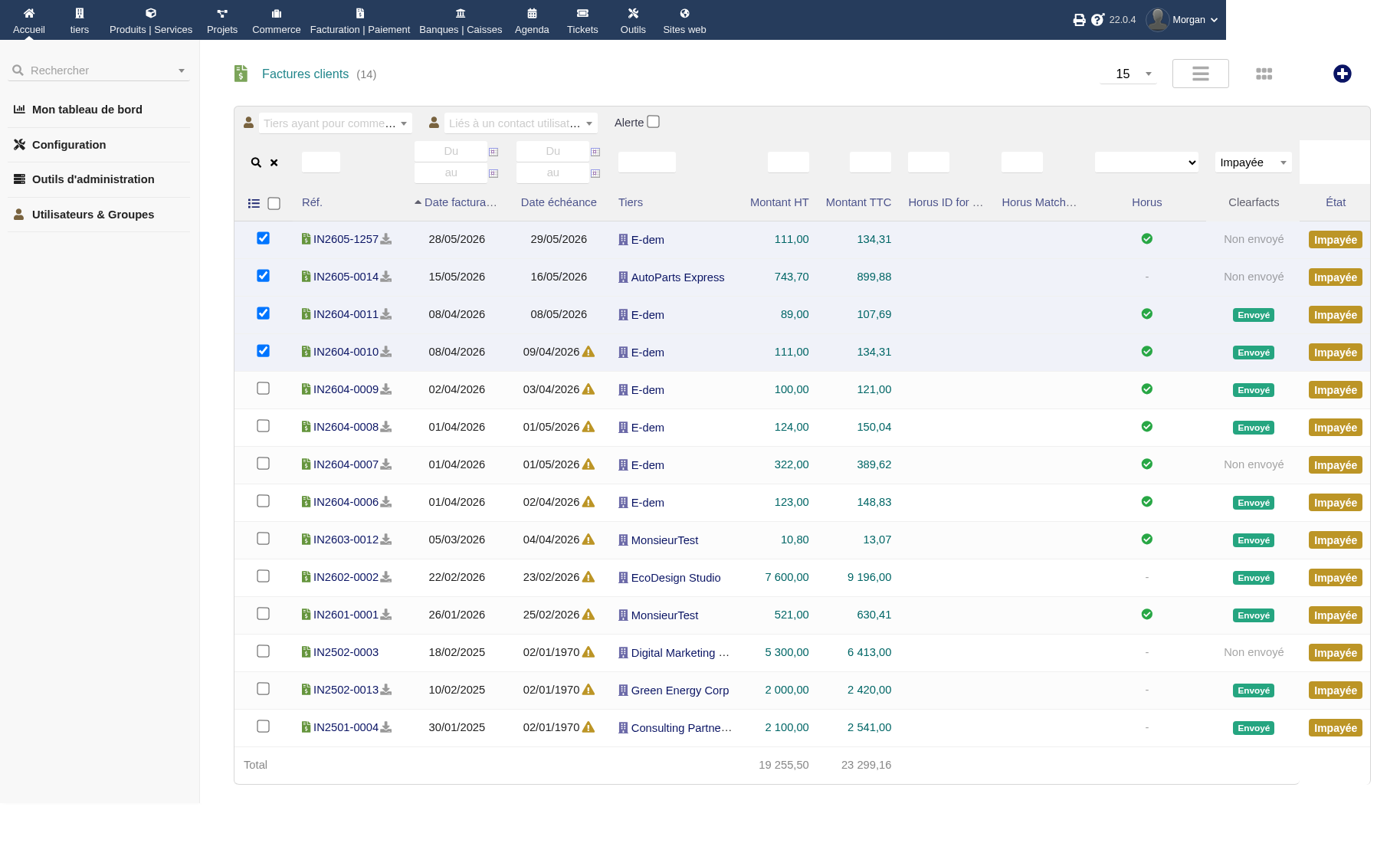
The selected invoices are added to the sync queue. DoliHorus scheduled jobs then consume this queue in the background. This method avoids timeouts and is better suited to batches or high volumes.
Important point: sending scheduled jobs consume the sync queue. They do not automatically search for all validated invoices that have not been sent yet. You must either send manually or add invoices to the queue.
Track an invoice from the Horus tab
Each customer invoice has a Horus tab.
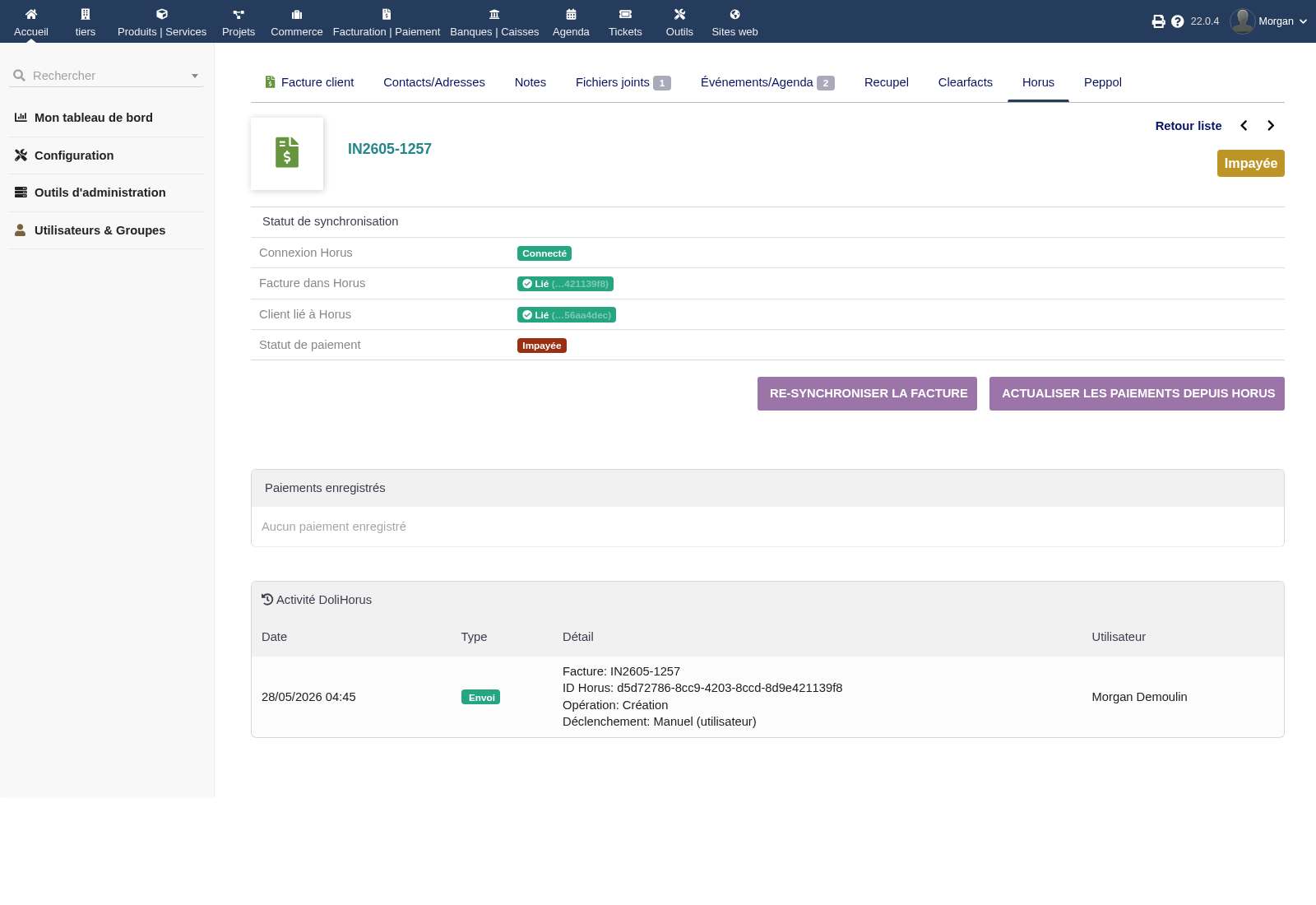
This tab shows:
- Horus connection status;
- the invoice identifier in Horus;
- the customer ↔ Horus link status;
- the payment status imported from Horus;
- re-synchronisation buttons;
- recorded payments;
- the DoliHorus activity log for the invoice.
The log helps you understand who triggered the action, when, with which result and which Horus message was returned.
Send supplier invoices
If purchase synchronisation is enabled, supplier invoices also have a Horus tab.
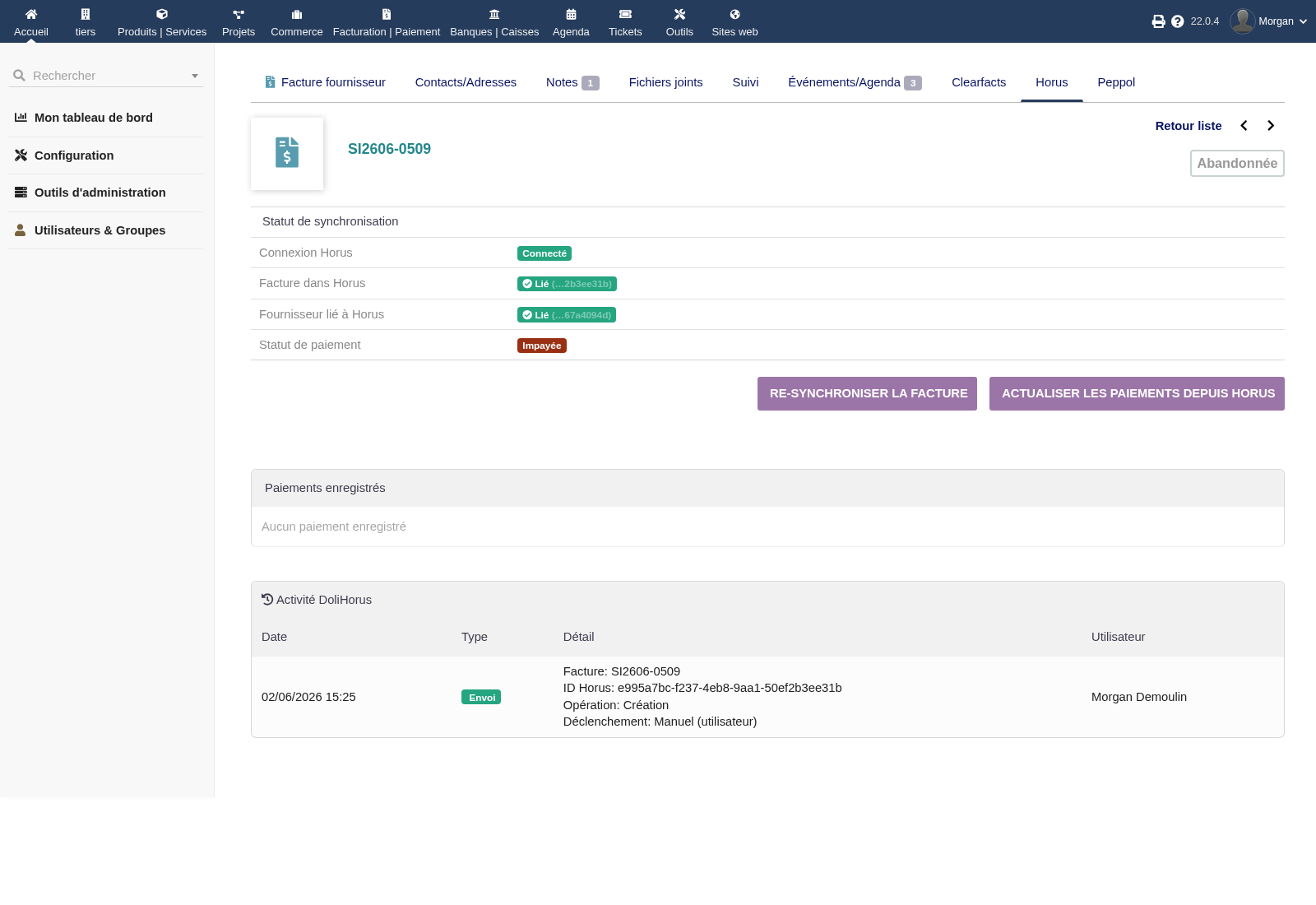
DoliHorus can synchronise:
- supplier invoices;
- supplier credit notes;
- the supplier ↔ Horus link;
- supplier payment statuses when enabled.
The behaviour is similar to customer invoices: manual send, queueing, history and re-synchronisation.
Manage the Horus link on a third party
Open the Horus tab on a third-party card.
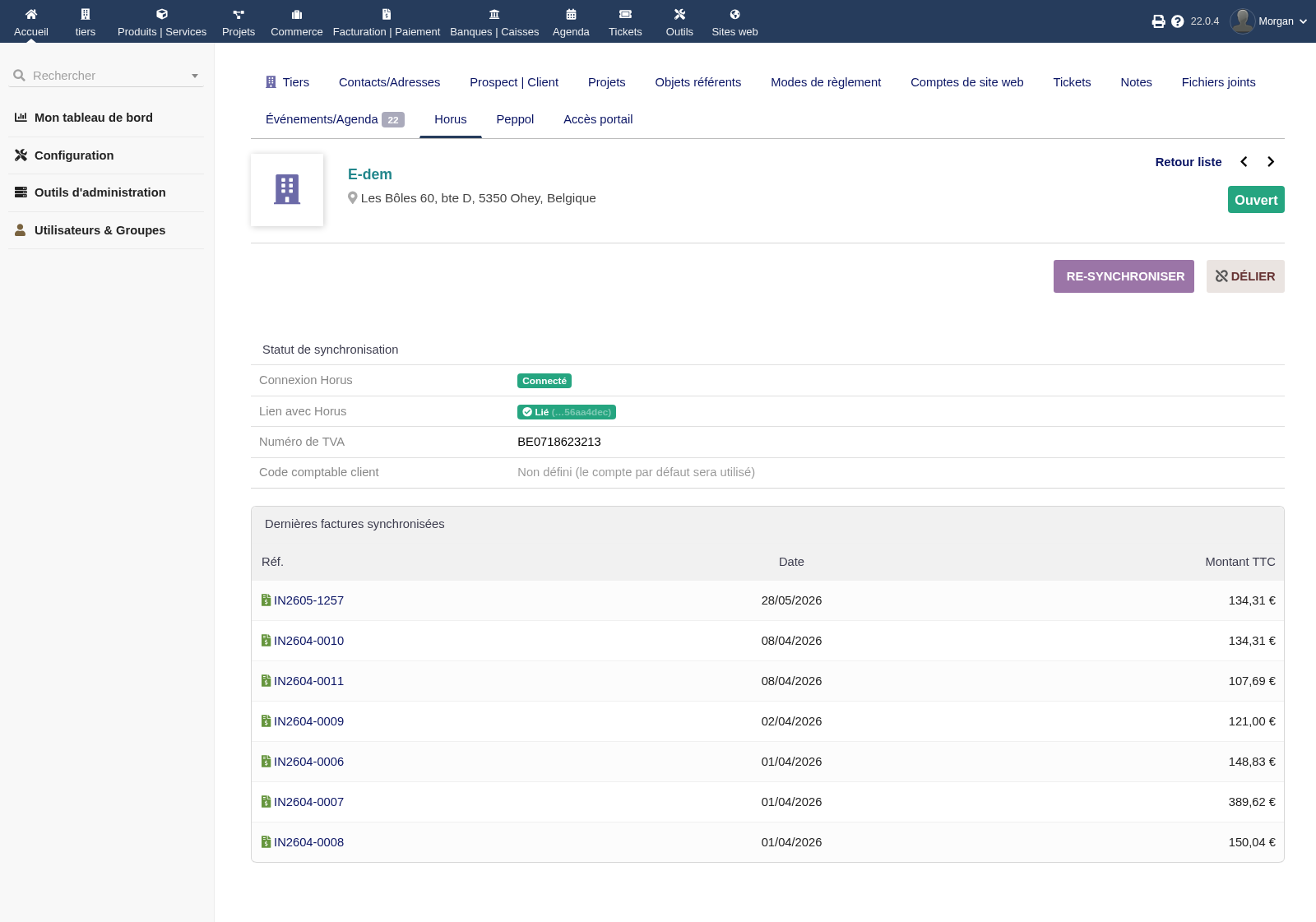
This tab lets you:
- see whether the third party is linked to a Horus company;
- review matching information;
- run synchronisation again;
- unlink a third party if the match is incorrect;
- view the latest synced invoices for that third party.
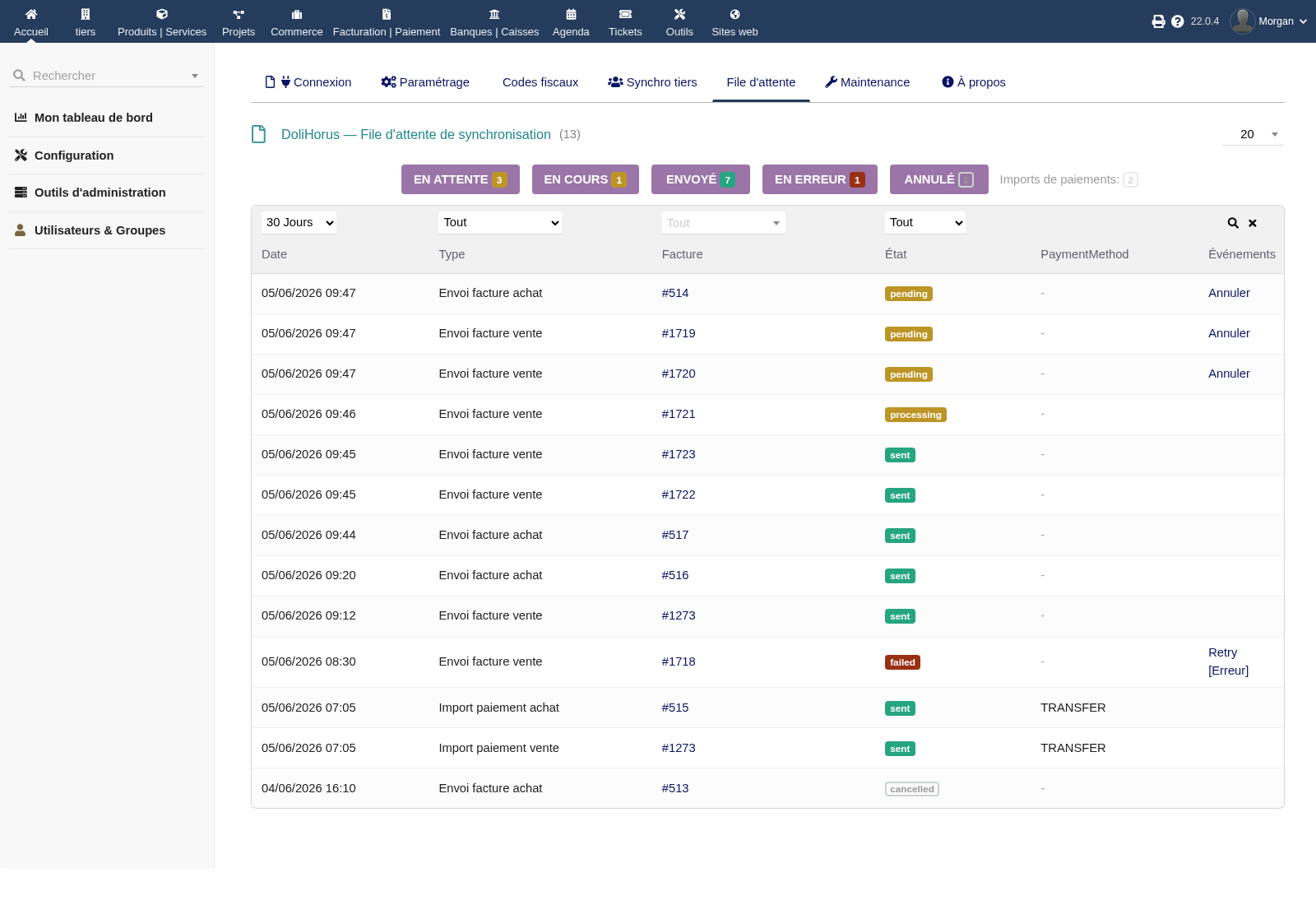
Sync queue and history
The Sync queue page centralises synchronisation operations.
It covers, among others:
- sales invoice sending;
- purchase invoice sending;
- customer payment import;
- supplier payment import.
Possible statuses are:
| Status | Meaning |
|---|---|
| Pending | The operation is ready to be processed by a scheduled job |
| Processing | The operation is currently being processed |
| Sent | The operation succeeded |
| Failed | The operation failed and requires correction or retry |
| Cancelled | The operation was cancelled before processing |
From this page, you can filter by period, operation type, third party and status. Failed lines can be retried with Retry after the root cause has been fixed. Pending lines can still be cancelled.
Automatic retry can relaunch a failed operation after a delay. It does not replace human control: if an error comes from a missing mapping, an incorrect third-party link or incomplete accounting settings, the cause must be fixed before retrying.
Payments
DoliHorus can retrieve payment information from Horus for already synchronised invoices.
Key points:
- payments are imported when Horus knows and has reconciled them;
- the delay therefore depends on the accounting or fiduciary workflow;
- payments can cover sales and purchases depending on configuration;
- import can be automated by scheduled jobs;
- refresh can be triggered from the Horus tab of an invoice.
For Dolibarr reminders, keep in mind that an invoice paid by the customer may not immediately appear as paid if reconciliation has not yet happened in Horus.
Maintenance
The Maintenance page lets you check module health.
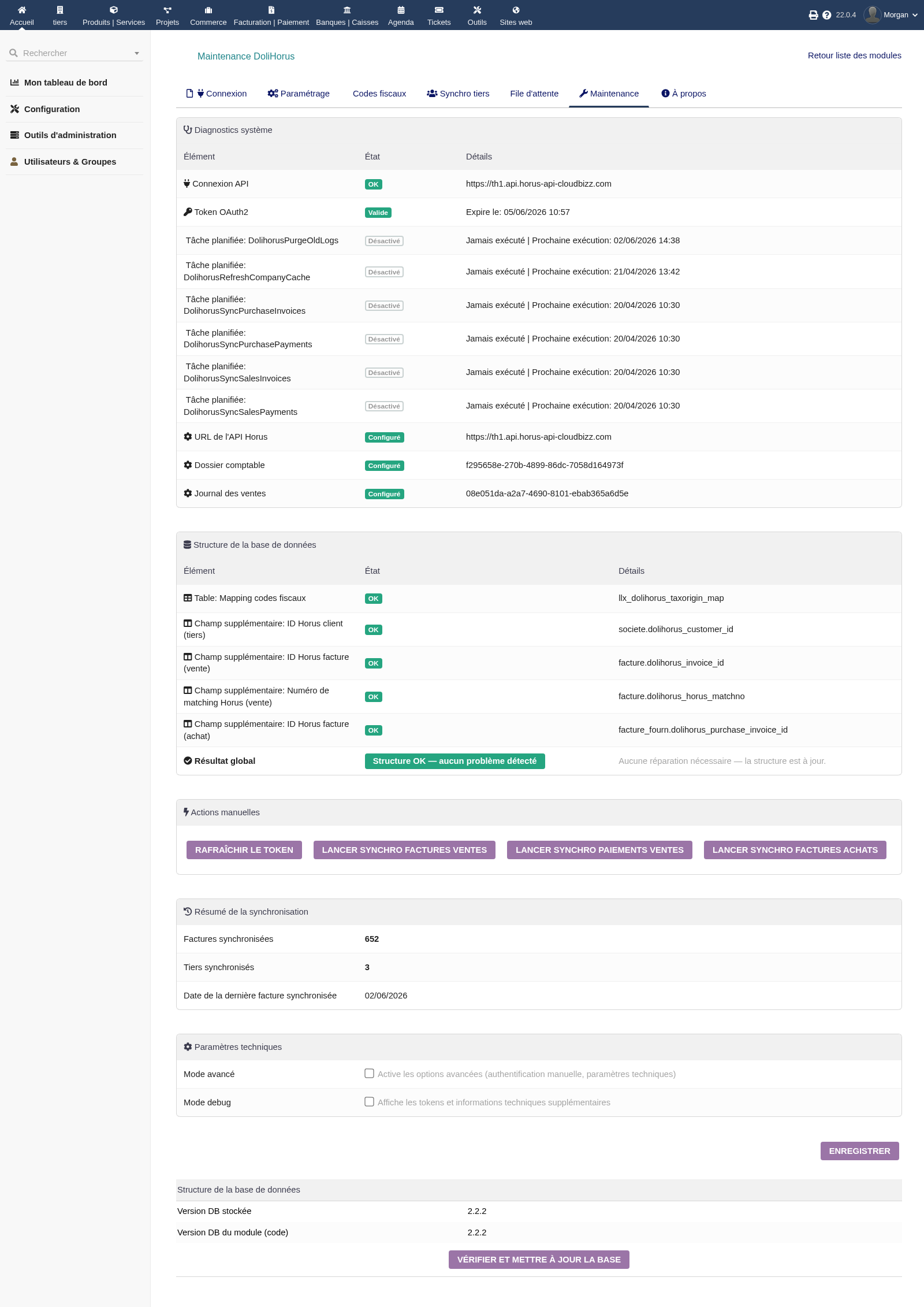
It displays, among other things:
- API connection status;
- OAuth2 token validity;
- scheduled job status;
- the API URL in use;
- the configured accounting folder and daybooks;
- database structure status;
- presence of required extra fields;
- a synchronisation summary.
After upgrading the module, open this page and run the structure check if needed. The module can repair or create missing tables and fields without deleting existing data.
For high-volume installations, a scheduled purge of old logs can be enabled. Configure it carefully so that errors needed for audit remain available.
Permissions
Module configuration should be reserved for administrators or trusted users.
DoliHorus permissions control, among other things:
- sending sales invoices to Horus;
- sending purchase invoices to Horus;
- viewing the queue and history;
- managing the queue: retry, cancellation, diagnostics;
- accessing configuration and maintenance pages.
Adjust permissions according to user roles: data entry, invoicing, accounting, administration.
Known limitations
- No Horus webhook: the module works through regular polling via scheduled jobs.
- Payments depend on Horus: a payment can only be imported once available and reconciled in Horus.
- Intentional queue workflow: crons consume the queue; they do not automatically discover every validated invoice.
- TaxOrigin codes are mandatory: missing tax mapping can block invoice sending.
- Sales analytics only: the analytic mapping documented here concerns customer invoices.
- Sensitive advanced options: VAT tolerance and unbalanced entries should remain exceptional.
FAQ
An invoice has been pending for a long time. What should I check?
Check that the corresponding sending scheduled job is active and that the invoice was actually added to the Horus queue. Sending scheduled jobs consume the queue; they do not automatically search for all validated invoices.
An invoice is failed. What should I do?
Open the sync queue, read the error message, fix the cause and click Retry. Common causes include missing tax code, incorrect third-party link, expired Horus access, or incorrect daybook/account settings.
Is TaxOrigin mapping mandatory?
Yes, for every VAT rate used on your invoices. Horus expects a tax code on transmitted lines. Auto-detection covers common cases, but special cases must be reviewed.
Payments are not imported although the customer has paid. Why?
DoliHorus retrieves payments known by Horus. If the payment has not yet been reconciled in Horus, it cannot be imported into Dolibarr yet.
Can I send several invoices at once?
Yes. From the invoice list, select the lines and use the bulk action Add to Horus queue.
Can I cancel a send?
Yes, as long as the line is still pending in the queue. Once it has been sent to Horus, cancellation must follow the applicable accounting rules.
Can an already sent invoice be re-synchronised?
Yes, the Horus tab provides re-synchronisation actions. Use them carefully if the invoice is already confirmed or processed in Horus.
What if a third party is linked to the wrong Horus company?
Open the Horus tab of the third party, unlink the incorrect Horus company, then run search or synchronisation again. When in doubt, manually select the right candidate.
Does the module create duplicate third parties in Horus?
DoliHorus tries to avoid duplicates through its local cache and matching score. In ambiguous cases, it asks for manual validation instead of linking blindly.
Is analytic mapping mandatory?
No. It is optional. If the feature is disabled or no code is present on the invoice, sending continues without analytics.
What happens if an analytic code is not mapped?
In explicit mode, the invoice is sent without analytics and a warning is logged. In automatic mode, the module uses the configured schema and can create the corresponding section if it does not already exist.
When should VAT tolerance or unbalanced-entry advanced options be used?
Only in exceptional cases, after accounting or support validation. These options can hide an inconsistency that should usually be corrected at the source.
What should I do after upgrading the module?
Open Dolibarr, then the DoliHorus Maintenance page. Check the connection, scheduled jobs and database structure. Run the built-in check/repair action if something is reported.
Support
- E-dem support: contact us for technical questions.
- Product page: /en/produits/dolihorus.
- Horus / fiduciary: contact your Horus provider or accountant for API access, accounting folders, daybooks, accounts and tax choices.
Module maintained by E-dem SRL. GPL v3+ license.