- Why Dalfred?
- Prerequisites
- Installation
- Configuration
- Usage
- Multi-provider AI
- Security
- Maintenance and diagnostics
- FAQ
Dalfred — AI Agent and AI Assistant for Dolibarr
Dalfred is an AI agent integrated into Dolibarr. It turns your ERP into an intelligent assistant: ask questions, dictate tasks, create documents and explore your data in natural language — without navigating through menus, building complex filters, or training.
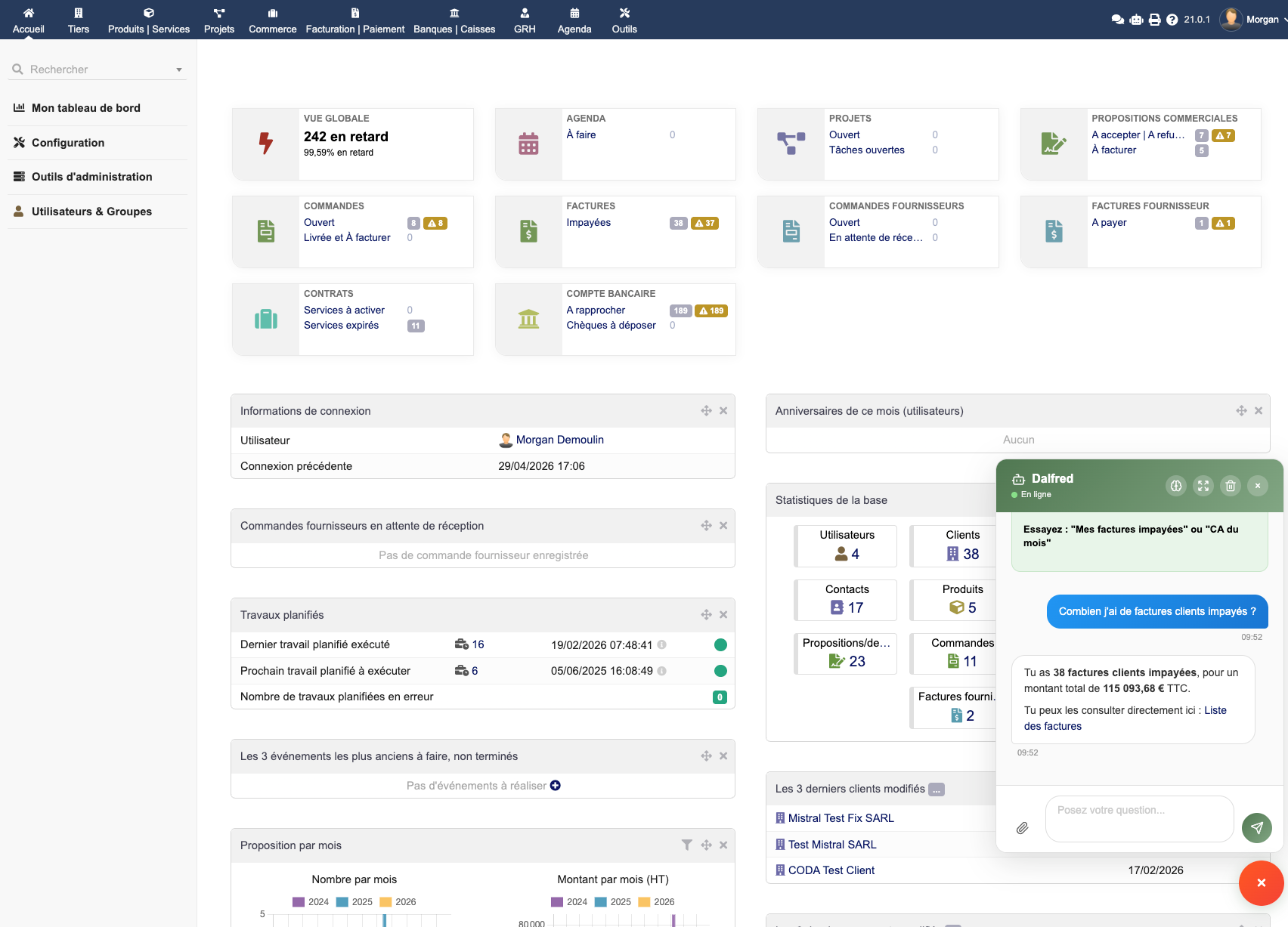
Under the hood, Dalfred uses the MCP (Model Context Protocol) to securely query your ERP, and works with your preferred AI provider: Anthropic, OpenAI, Mistral, Google or Ollama (self-hosted).
Why Dalfred?
- Query your data in plain language — "What was my revenue last quarter?", "List my top 10 customers"
- Create documents by dictating — A single sentence is enough to create an invoice with lines, totals, and calculations
- Smart Queries — Save your favourite queries, parametrise them, share them with your team
- Business memory — Dalfred learns your business context (margins, customer preferences, procedures)
- PDF attachments — Send a PDF invoice and Dalfred extracts the lines and creates it automatically
- White-label customisation — For resellers: brand, logo and colours fully customisable
- Remote MCP access — Connect claude.ai with OAuth 2.1, or Claude Code and API clients with your Dolibarr API key
Prerequisites
| Component | Minimum version |
|---|---|
| Dolibarr | Recent version |
| PHP | PHP ≥ 8.1 |
| PHP extensions | json, curl, mbstring, openssl |
| Dolibarr module | Api (enabled) |
You will also need an API key from an AI provider — or a self-hosted Ollama instance (free, your data stays on-premises).
Note: AI API usage costs are billed directly by the provider, independently of the Dalfred licence. With Ollama, usage is entirely free.
Installation
From the DoliStore
- Purchase Dalfred on the DoliStore (€299 excl. VAT, one-time purchase, 1 year of updates included)
- Download the ZIP archive
- Extract the archive into the
htdocs/custom/folder of your Dolibarr installation - The final folder should be
htdocs/custom/dalfred/
Activation
- Log in to Dolibarr as an administrator
- Go to Home → Setup → Modules/Applications
- Search for "Dalfred" and click Enable
Once enabled, the floating widget appears in the top bar of every Dolibarr page, and a new Dalfred menu becomes available.
Configuration
Configuration is done through several administration pages, accessible from Dalfred → Setup.
General settings
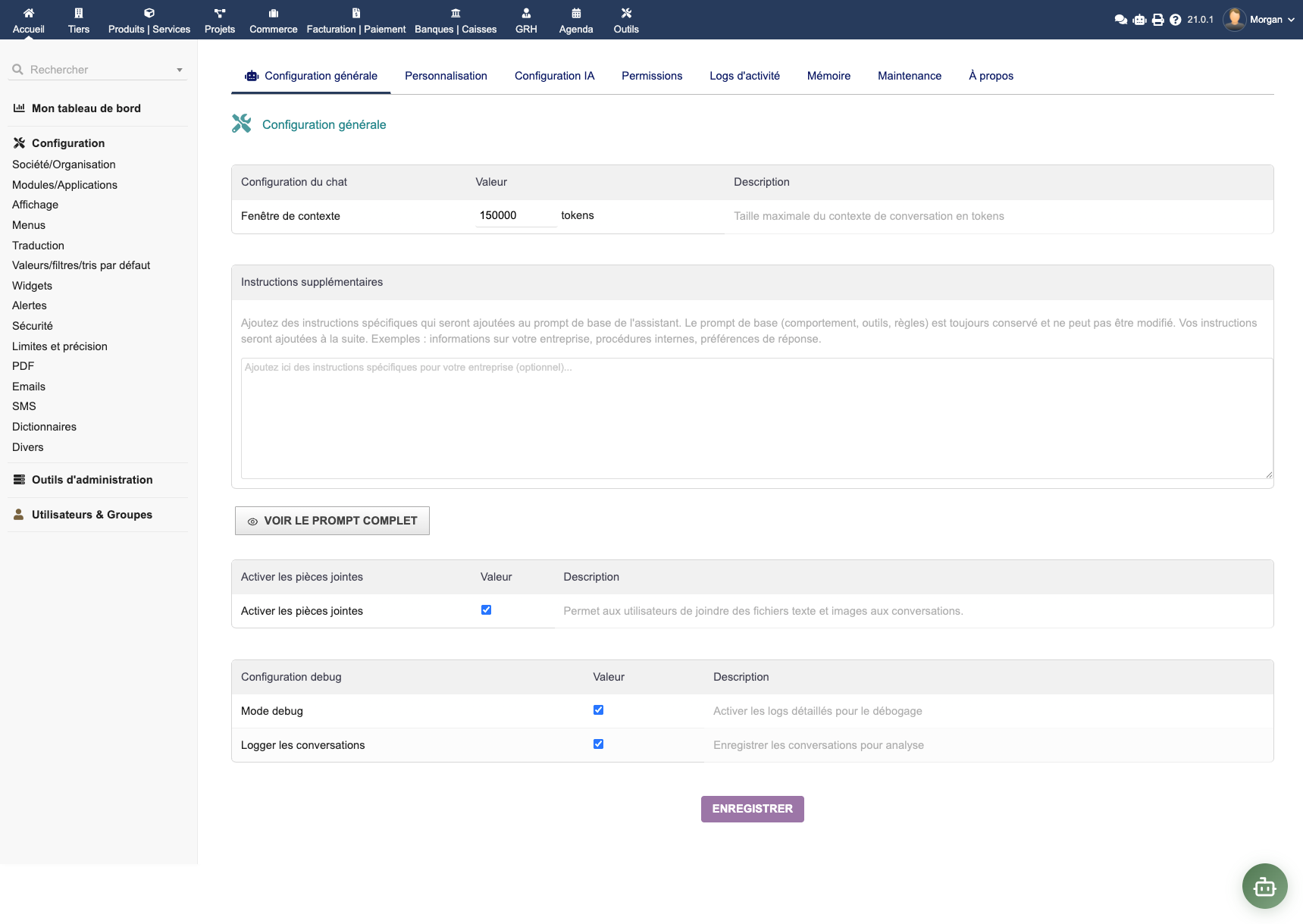
The general configuration page (setup.php) groups the basic settings:
- Log retention — How long the activity log is kept (default: 30 days)
- Debug mode — Enables detailed logging for diagnostics
- Threads per user — Maximum number of conversation threads per user
External MCP access has its own dedicated settings — see External MCP access below.
External MCP access
Dalfred can expose your Dolibarr as a remote MCP (Model Context Protocol) server over Streamable HTTP, so external AI clients — claude.ai, Claude Code, the Anthropic API, or any MCP-compatible client — can query and act on your Dolibarr data.
This feature is off by default. While disabled, the endpoint responds with HTTP 403 to every request.
Enable it from the dedicated External MCP access administration tab. This tab is separate from the general Dalfred settings page. Internally, the option sets the DALFRED_MCP_EXTERNAL_ENABLED constant.
Once enabled, the tab displays everything you need to connect a client:
- The endpoint URL:
https://your-dolibarr.example/custom/dalfred/mcp.php - The OAuth metadata URL under
https://your-dolibarr.example/custom/dalfred/oauth.php/.well-known/… - Ready-to-copy examples for the supported clients
Prerequisite: The Dolibarr REST API module must be enabled. The MCP bridge queries Dolibarr through its native REST API.
Every request runs with the permissions of the authenticated Dolibarr user. Whoever connects only sees and can do what their own account is allowed to see and do; there is no separate MCP permission model.
AI configuration
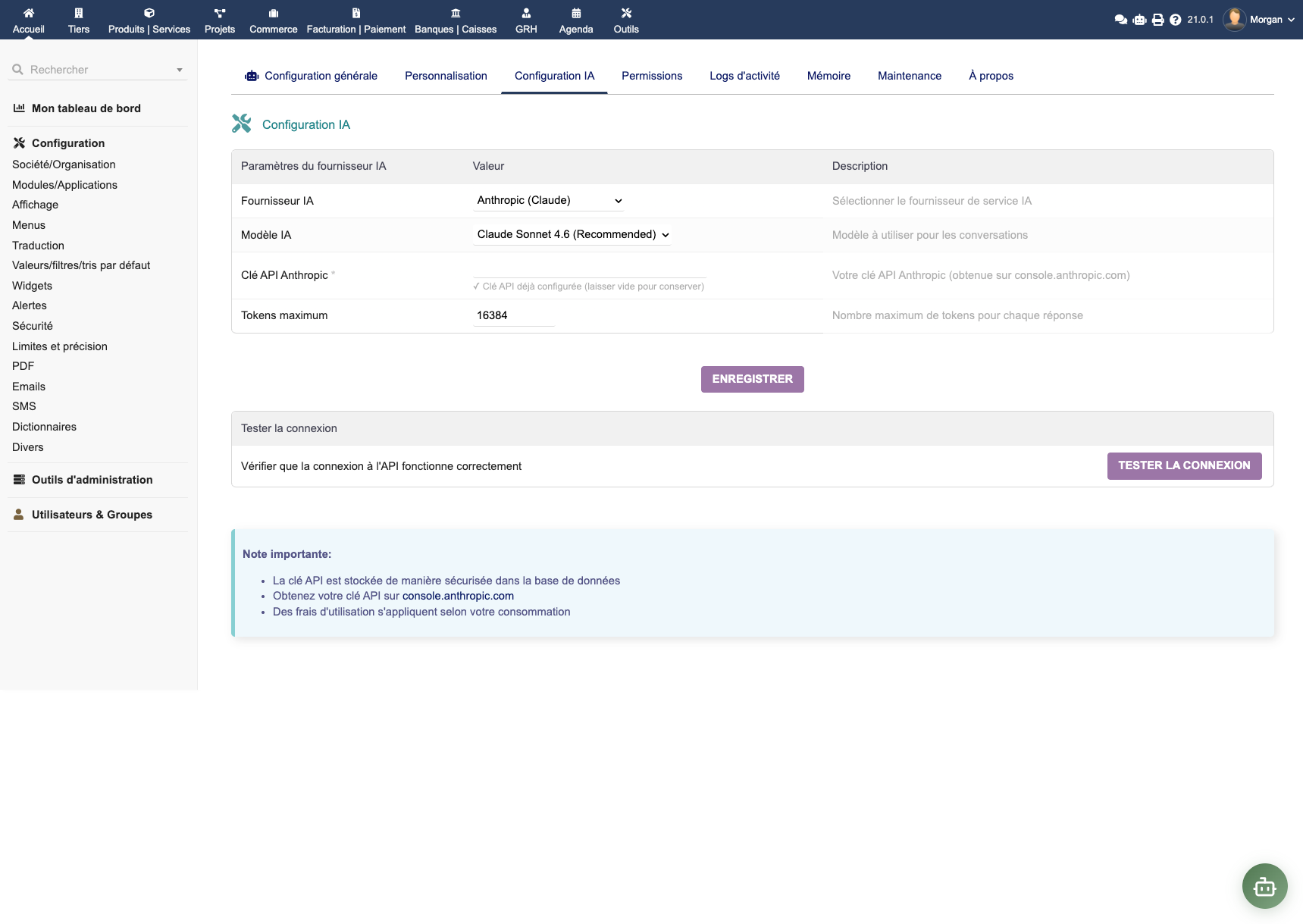
The ai_setup.php page configures the connection to the AI provider:
- AI provider — Choose from Anthropic, OpenAI, Mistral, Google (Gemini) or Ollama
- Model — Select from the recent models made available for the chosen provider (Opus, Sonnet, Haiku, GPT, Gemini, Mistral, Llama, etc.)
- API key — Enter your API key (encrypted at rest in the database)
- Custom URL — For Ollama or a custom OpenAI-compatible endpoint
- Max tokens — Maximum response size (default: 16,384)
- Context window — Tokens kept for conversation history (default: 150,000)
- Custom system prompt — Overrides the default prompt (leave empty to use the optimised built-in prompt)
Click Test connection to validate your configuration.
Important: Model choice affects both response quality and cost per request. The most capable models in the Opus or GPT families are more expensive but handle complex requests better. For basic lookups, a lighter Haiku, compact OpenAI or Mistral model is usually sufficient.
MCP tool permissions
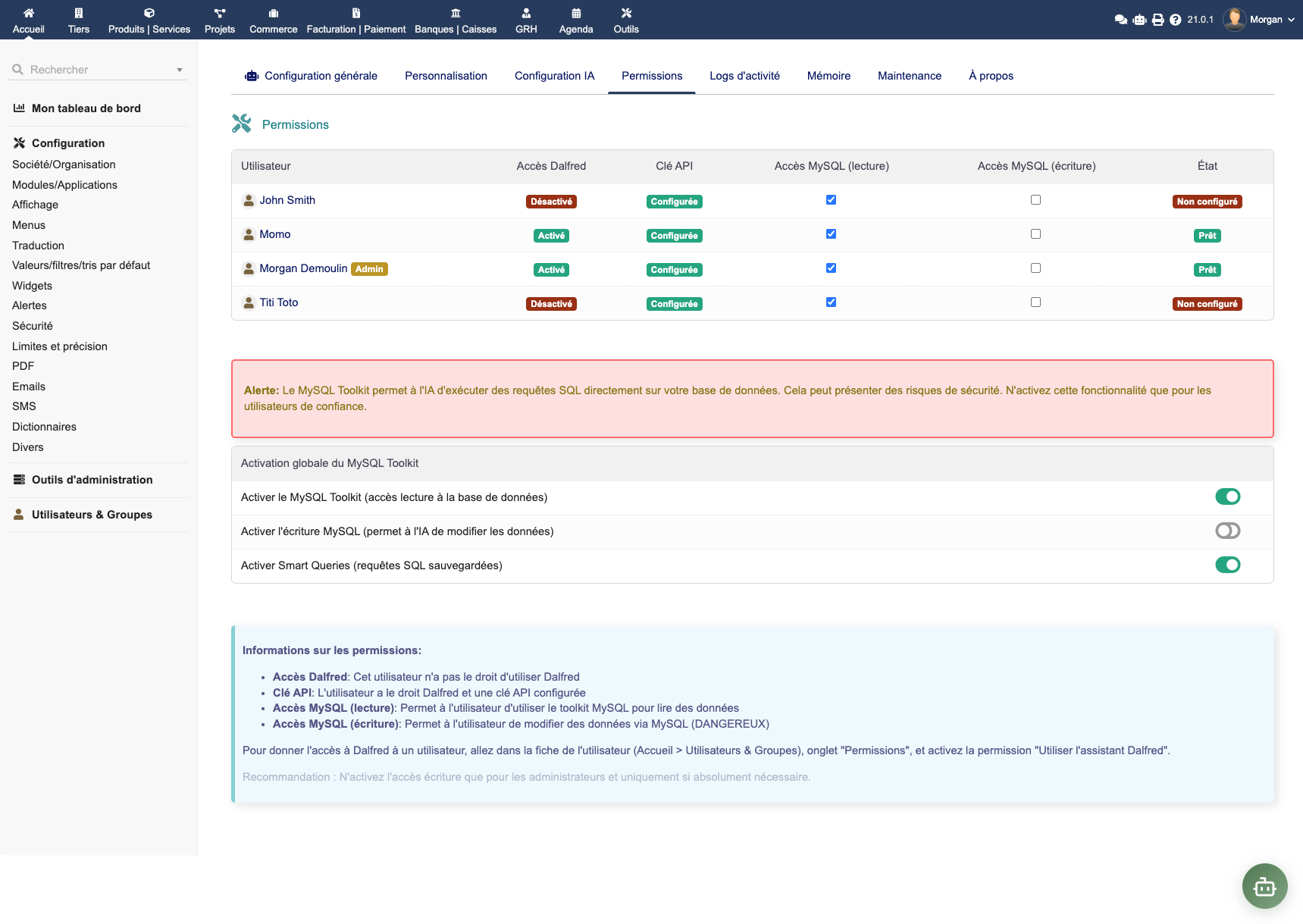
Dalfred can perform actions via MCP tools. The toolkit_permissions.php page provides granular control:
- Query tools — Reading third parties, invoices, orders, products, payments, etc.
- Creation tools — Creating quotes, invoices, orders
- Modification tools — Updates, line additions/deletions, document validation
- SQL tools — Read-only SQL queries (with whitelisted tables)
- Content tools — Generating descriptions, emails, translations
For each tool you can define:
- Enabled/Disabled globally
- Authorised Dolibarr groups — restricts access to specific user groups
Security tip: Only enable the tools you actually need. Restrict modification tools (invoice creation, record edits) to trusted users.
White-label customisation
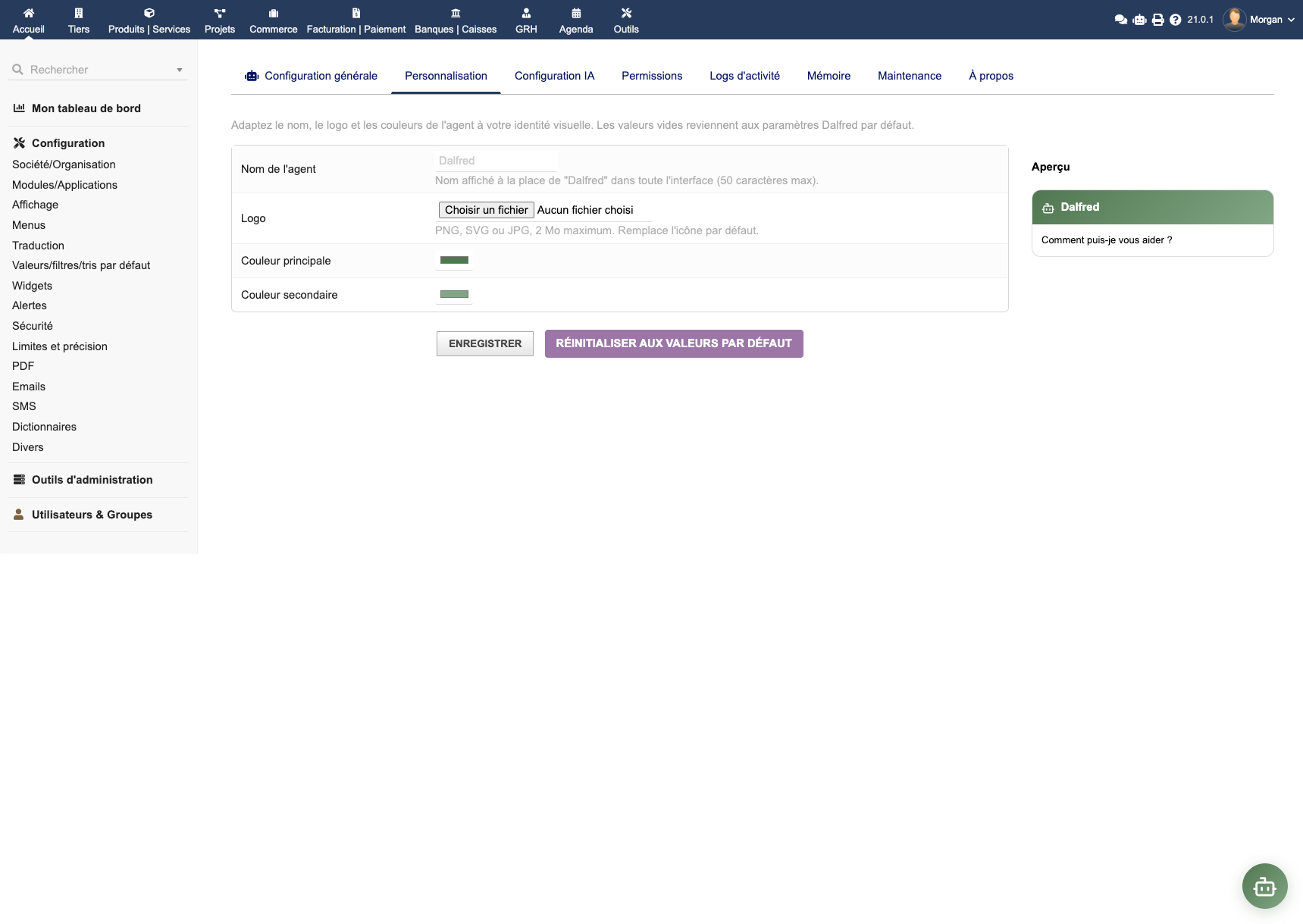
The branding.php page allows integrators and resellers to offer Dalfred under their own brand:
- Assistant name — Replace "Dalfred" with the name of your choice
- Logo and avatar — Upload your logo and a custom avatar
- Colours — Primary and accent colours aligned with your brand
- Description — Text shown on the chat welcome screen
- Welcome message — The assistant's first message
All visible surfaces (widget, full-screen chat, welcome page) reflect your branding immediately.
Knowledge base (business memory)
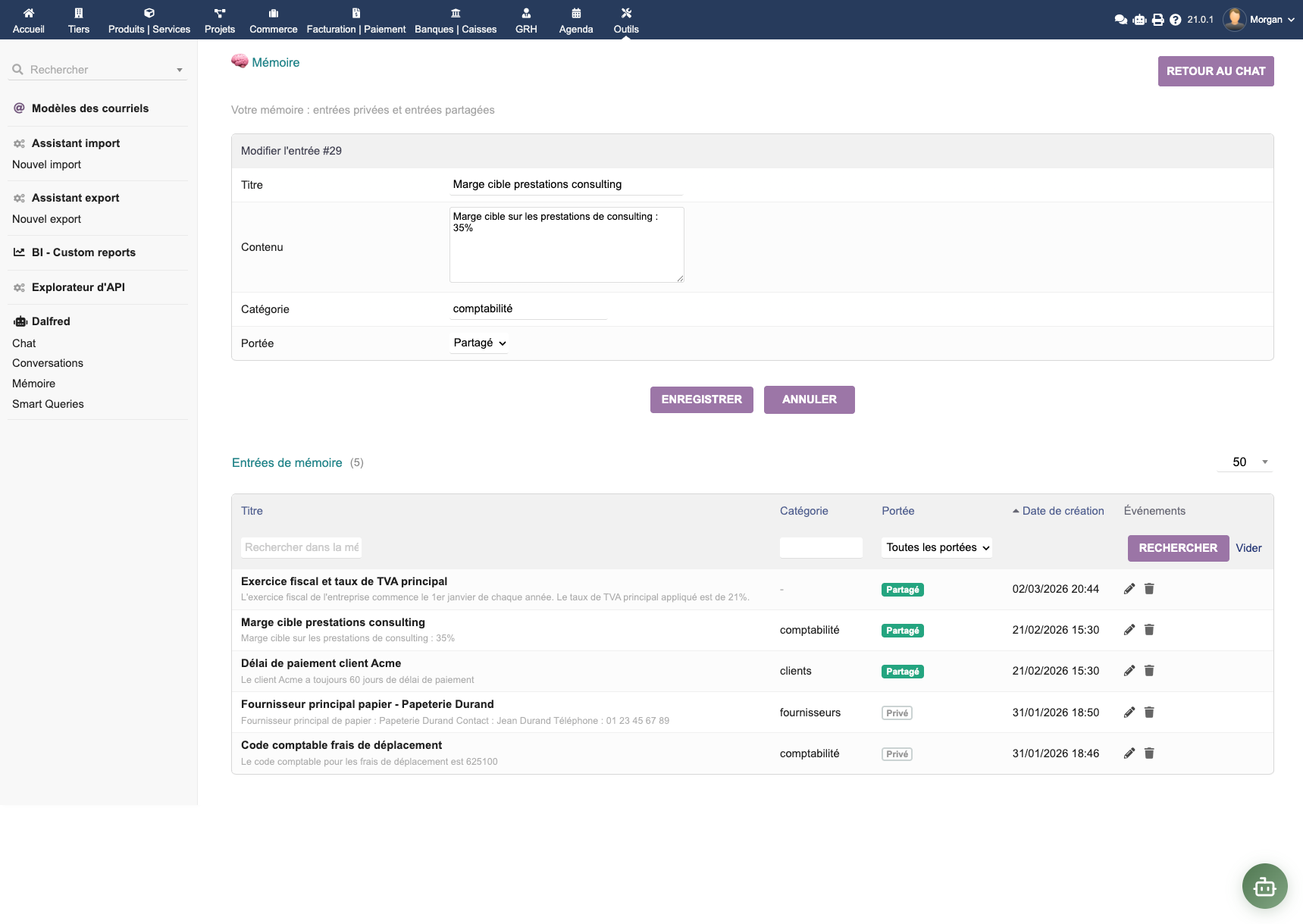
The knowledge.php page lets you enrich Dalfred with your business information:
- Business facts — "Our target margin is 35% on consulting services"
- Customer preferences — "Customer Martin prefers 30 days end-of-month invoicing"
- Procedures — "When invoicing in Belgium, apply 21% VAT"
- Categories — Organise entries to make retrieval easier
- Visibility — Private (only you) or shared (whole team)
Dalfred consults its memory automatically before answering, providing increasingly relevant responses over time.
Usage
Two complementary interfaces
Dalfred offers two ways to interact:
The floating widget
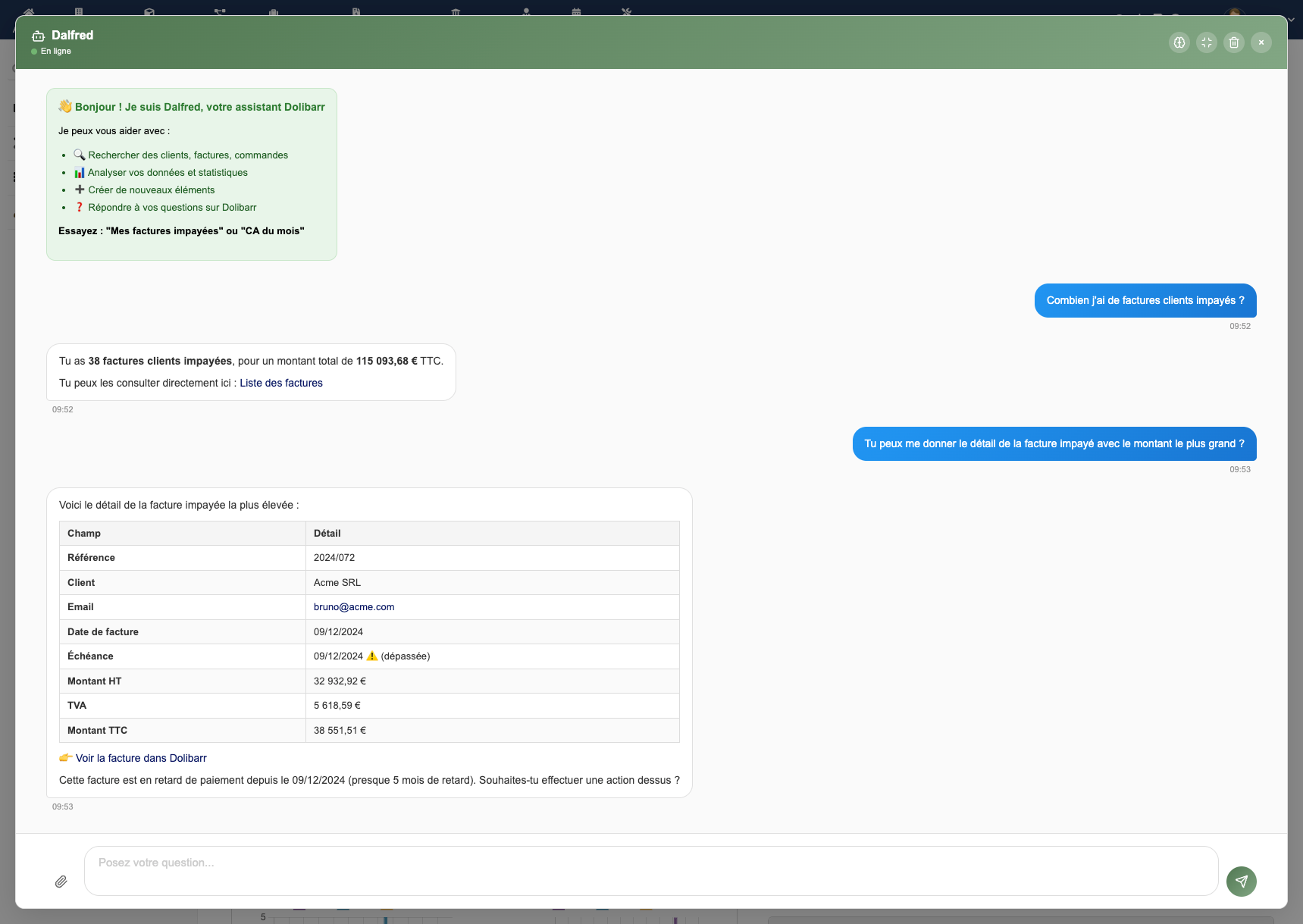
A discreet button is added to the Dolibarr top bar. A click opens a compact chat window. The widget knows the current page and adapts its responses accordingly (for example: opening it on an invoice lets you ask questions directly about that document).
The dedicated chat page
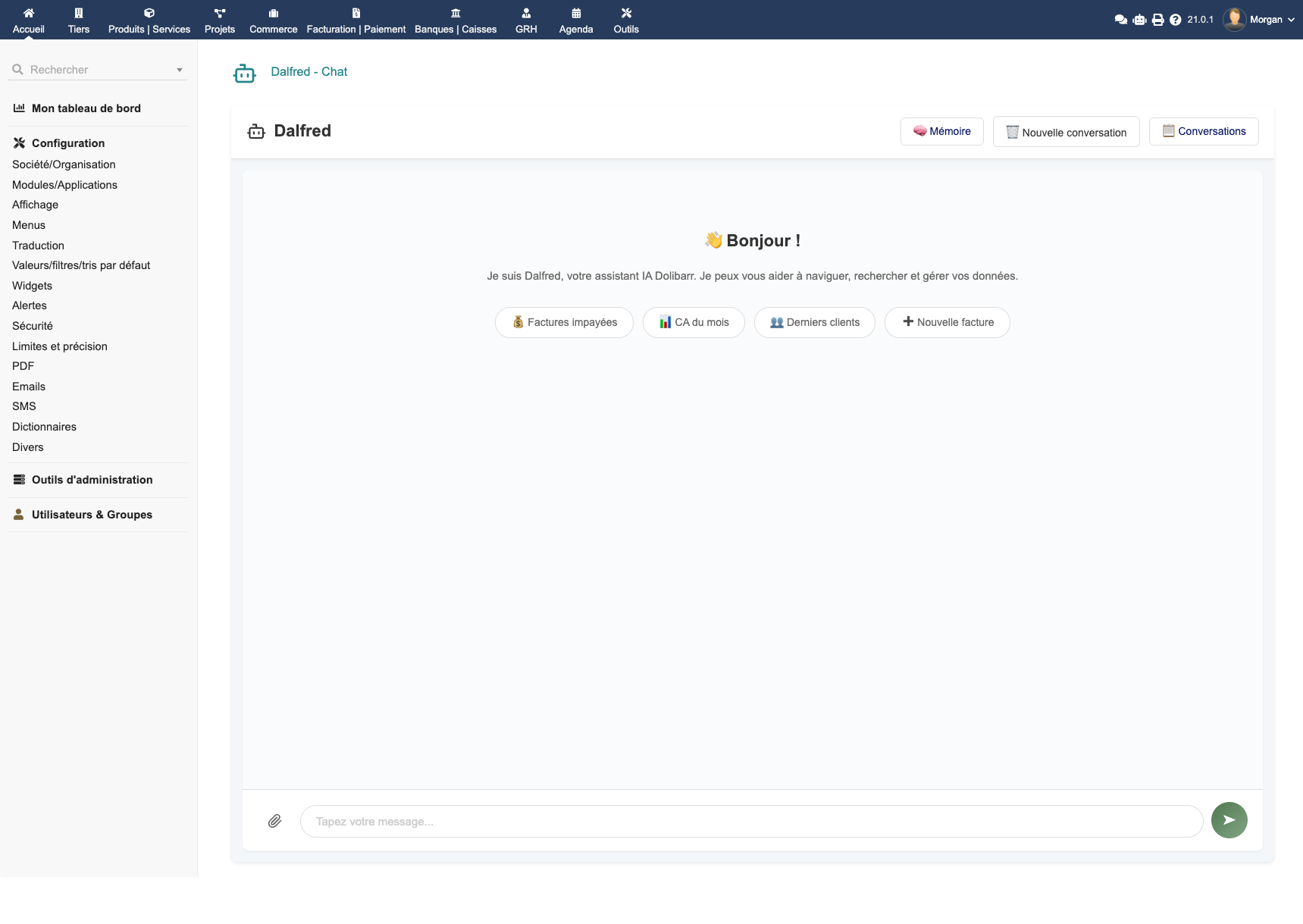
For longer sessions, access Dalfred → Chat from the menu. The full-screen interface offers:
- The complete conversation history in the sidebar
- Thread management — one thread per topic
- Access to Smart Queries
- Access to the business memory
Multi-conversation (threads)
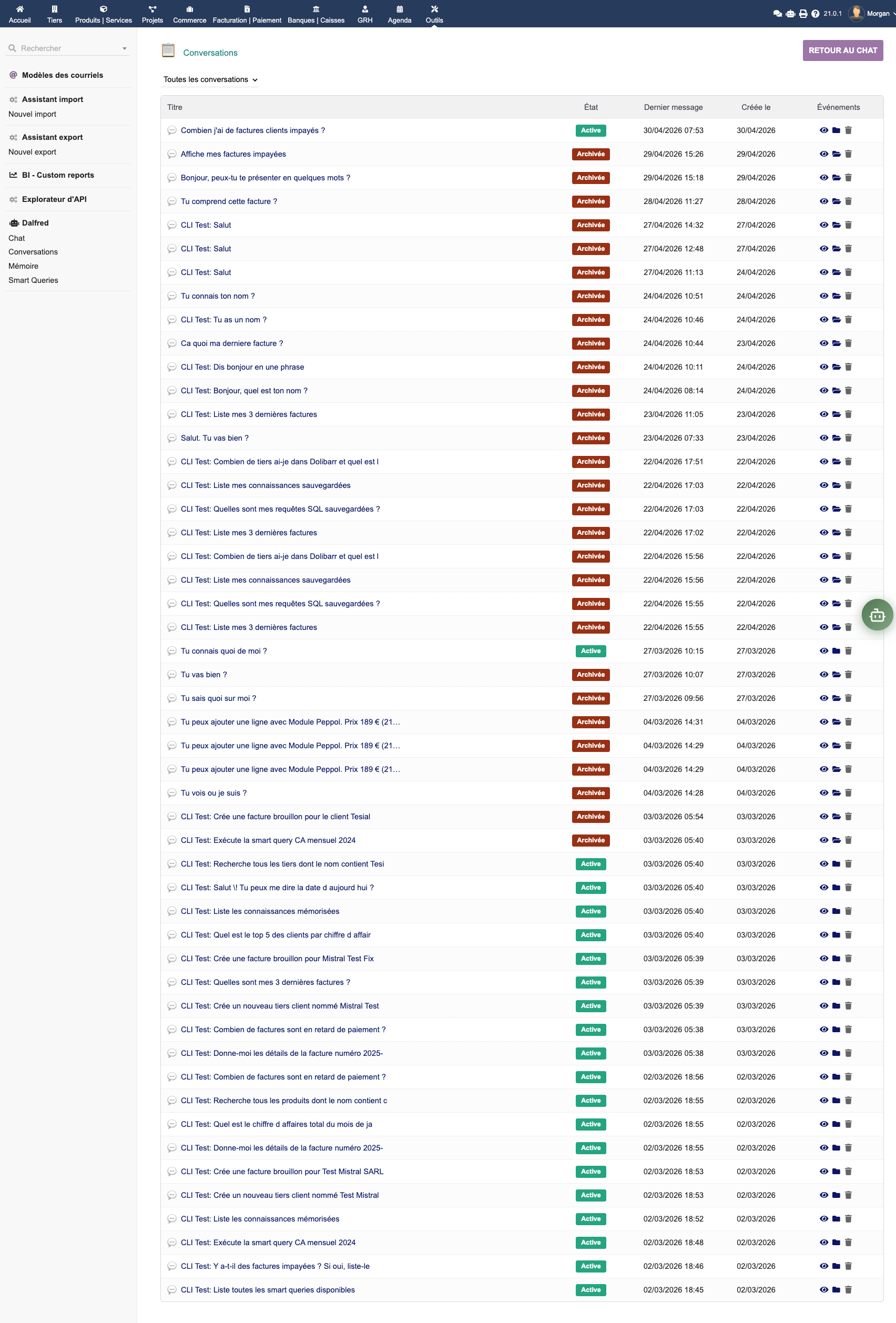
Each user can maintain several discussion threads in parallel:
- New conversation — "+" button to start a thread on a new topic
- Resume — Click an existing thread to resume the conversation with its full context
- Rename — Give each thread a clear title
- Delete — Remove threads you no longer need
Each thread keeps its own history and context (handy for handling multiple cases in parallel without mixing contexts).
Smart Queries — your built-in Business Intelligence
Smart Queries are one of Dalfred's most powerful features: turn any question into a saveable, parametrisable, shareable query.
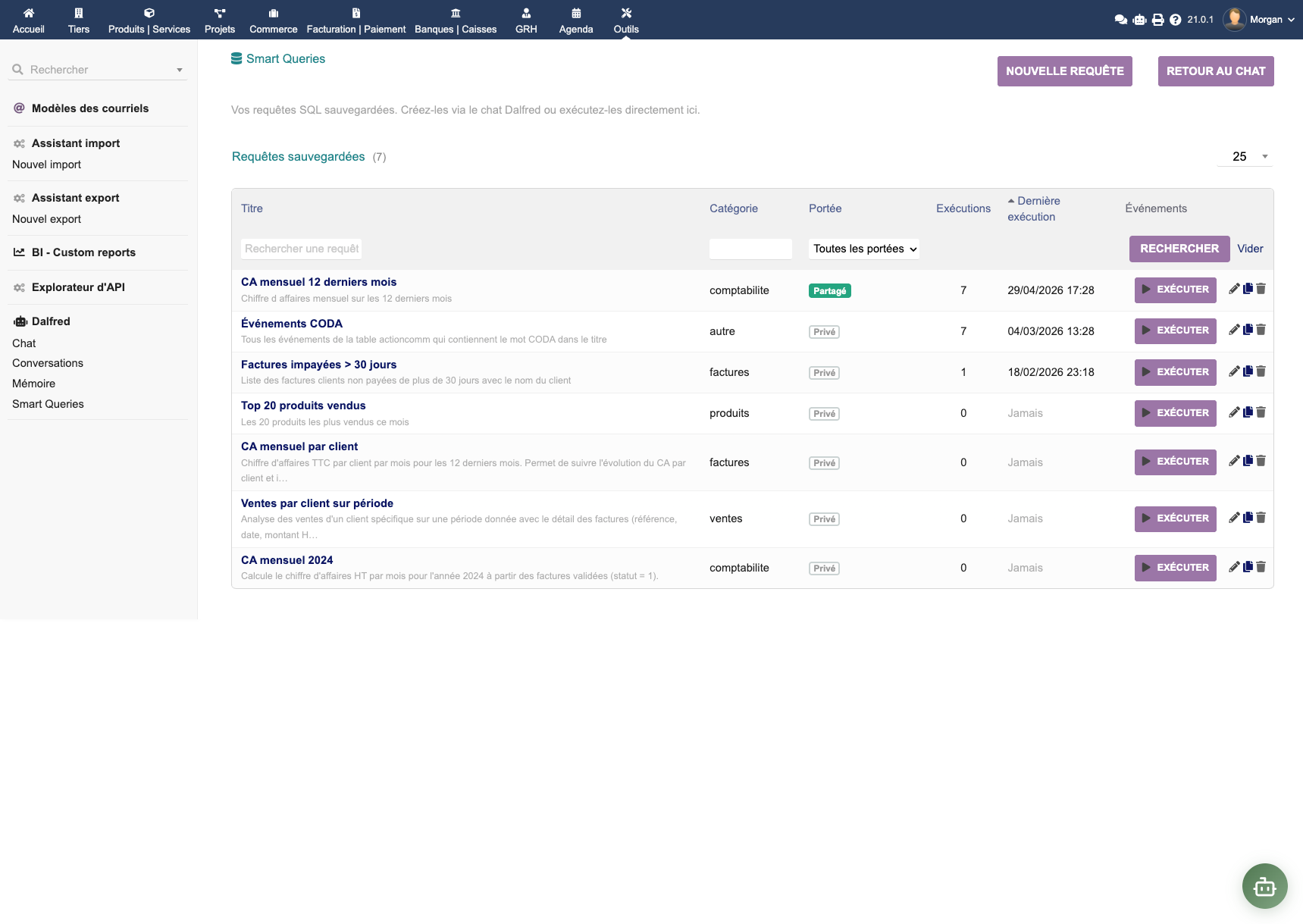
Creating a Smart Query
Ask Dalfred a question in the chat. When a SQL query is executed and the result interests you, click Save as Smart Query:
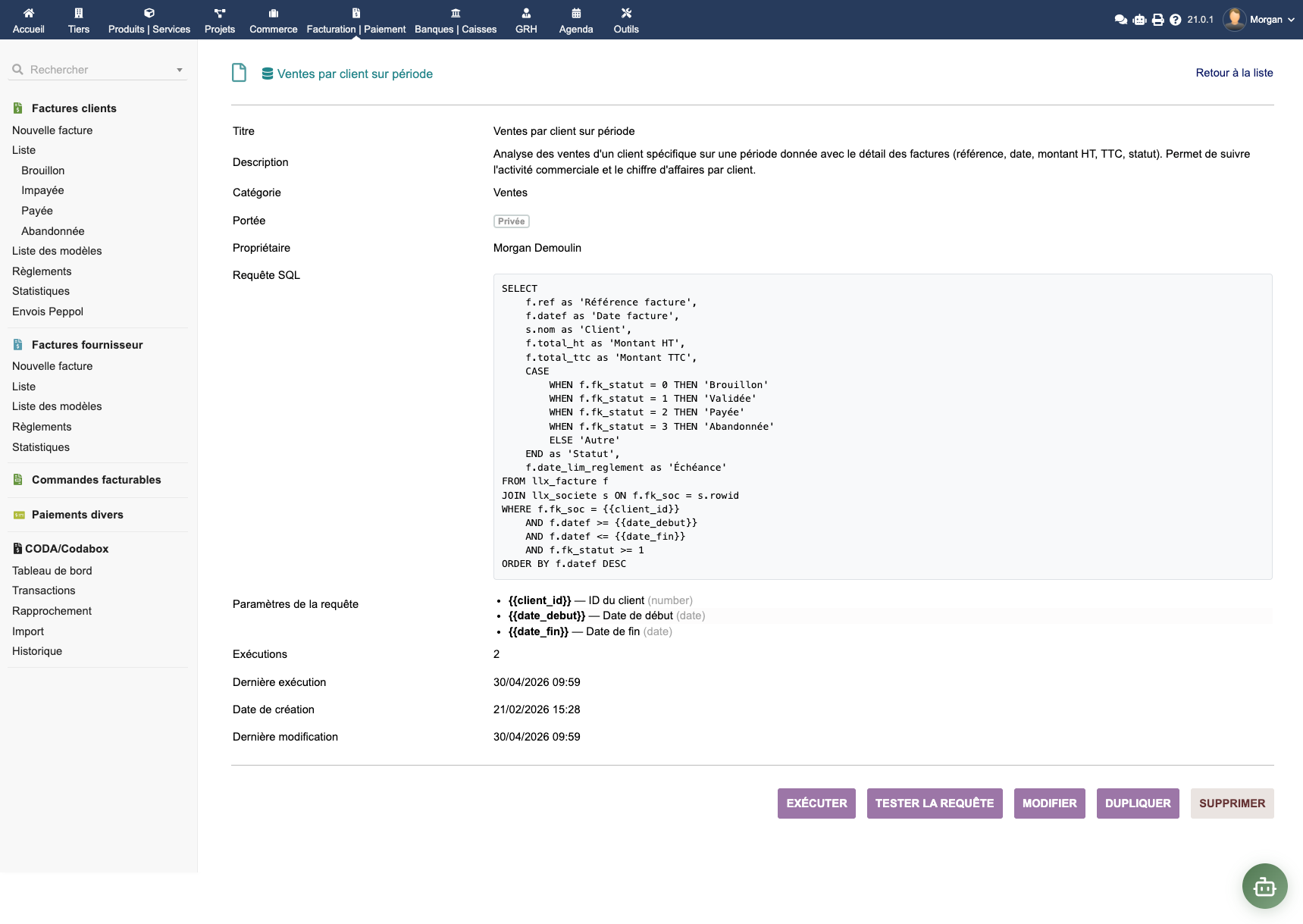
You can then:
- Rename the query and give it a clear description
- Define dynamic parameters (start date, end date, customer, sales rep…)
- Adjust the SQL if needed (the SQL is transparent — you can read and tweak it)
- Mark the query as shared to make it available to the whole team
Running a Smart Query
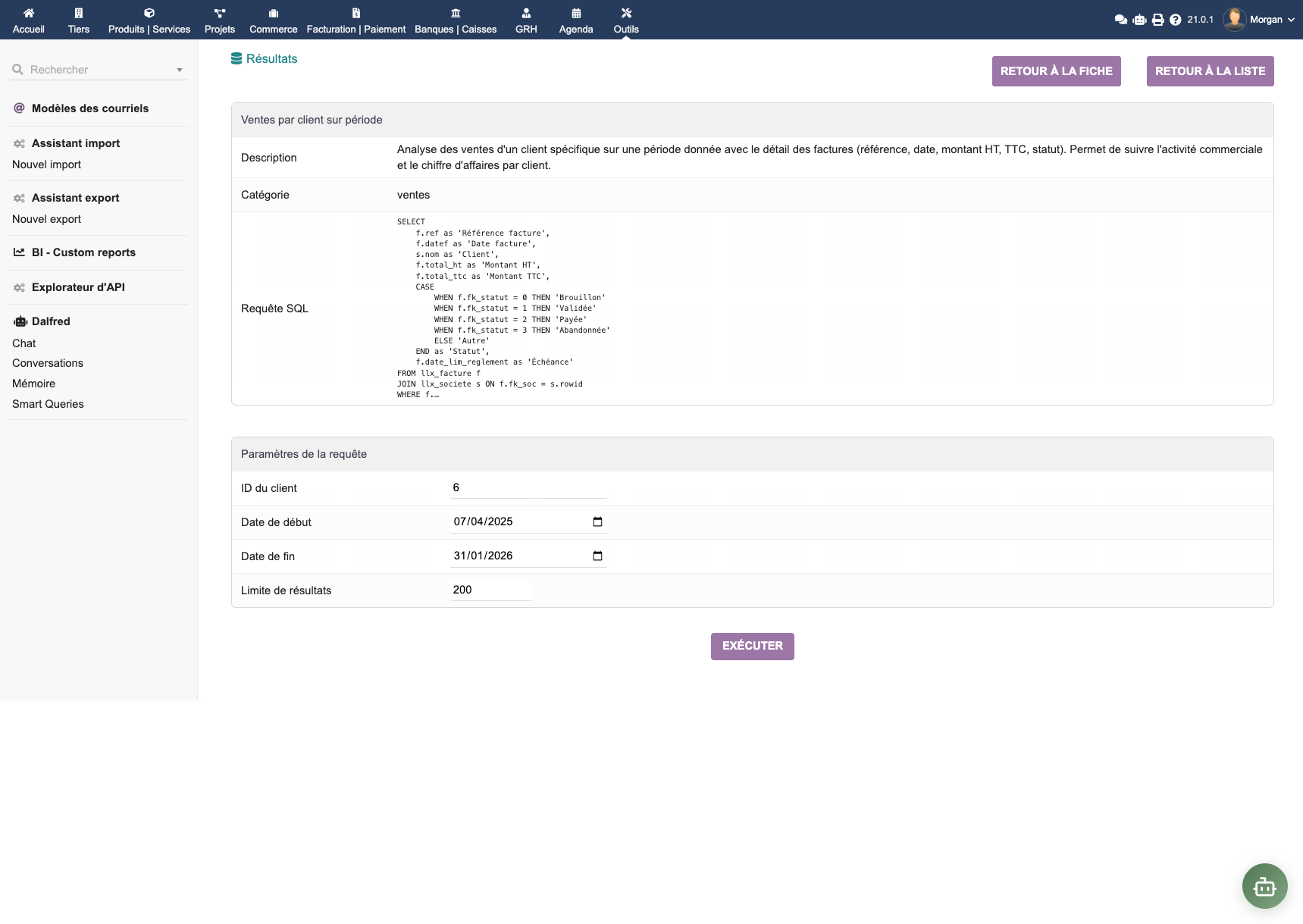
Click a Smart Query, fill in the requested parameters, run the execution:
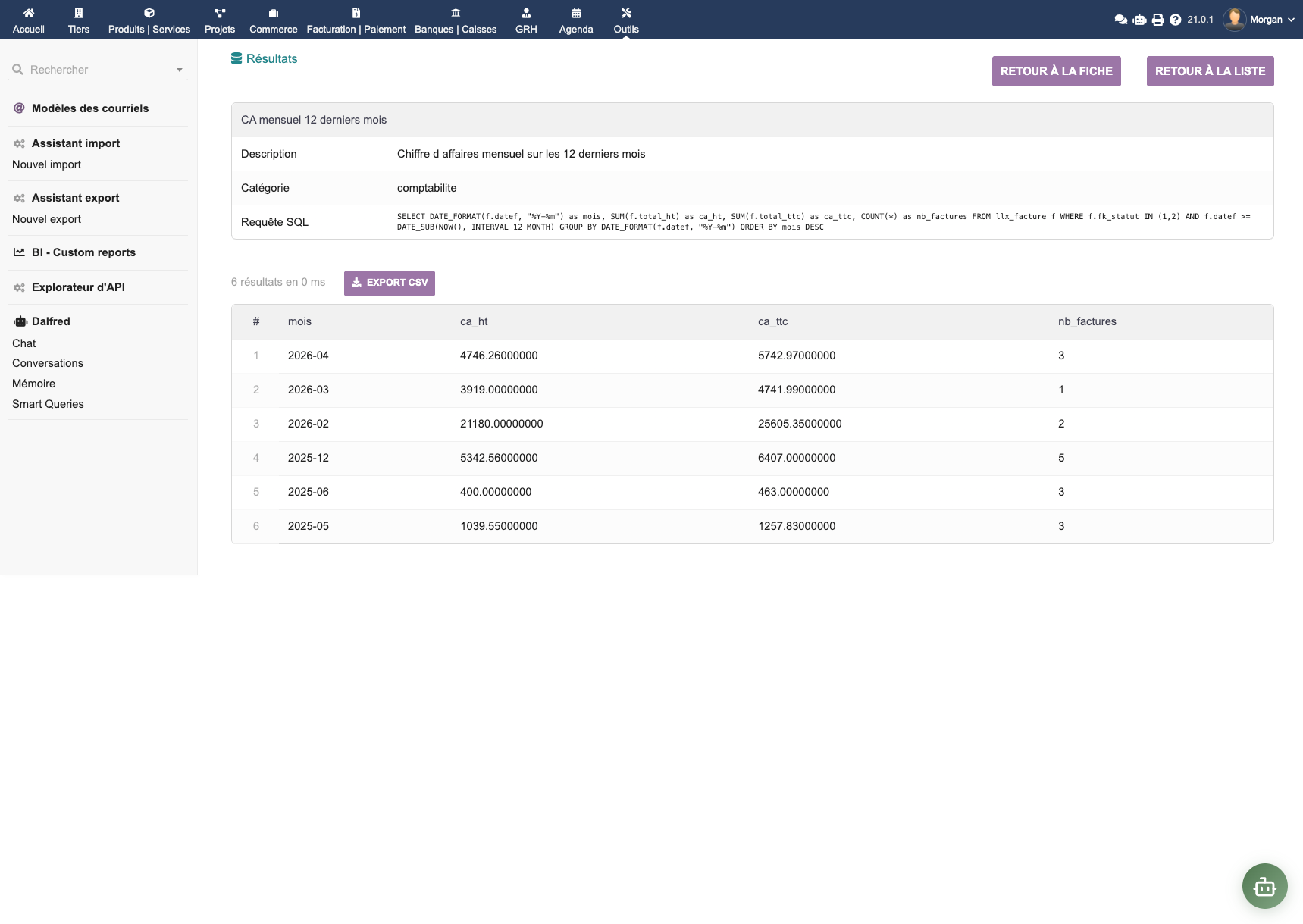
The result appears in a formatted table with built-in CSV export for Excel or Google Sheets.
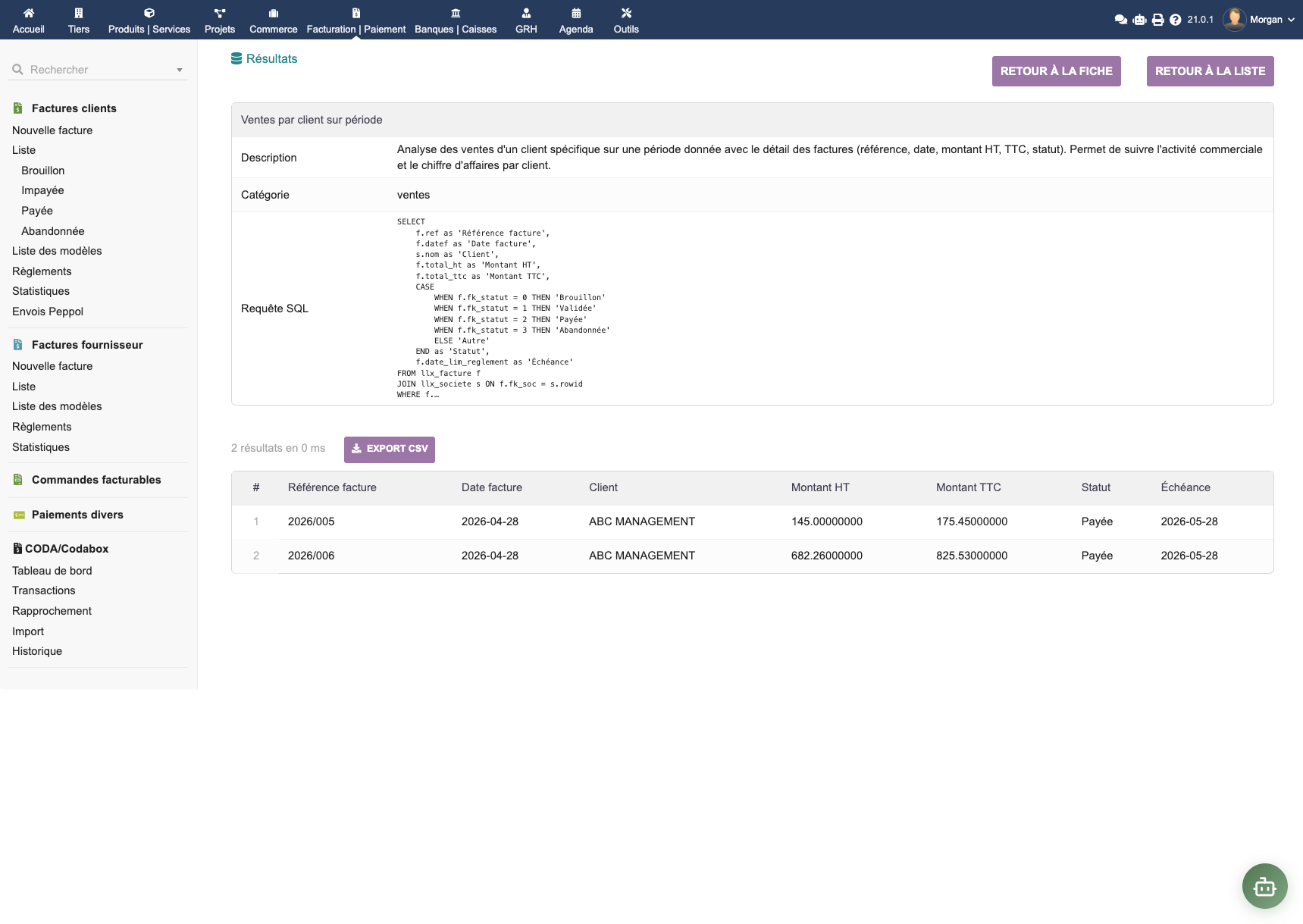
Typical use cases: monthly sales dashboard, margin report by category, supplier outstanding by due date, top customers by revenue. Once the query is saved, your team can re-run it in one click — no SQL knowledge required.
MCP tools
When Dalfred needs to access your data or perform an action, it uses an MCP tool:
- You ask a question or give an instruction
- Dalfred identifies the required tool(s) (list, create, modify, calculate)
- The tools are executed (query, creation, modification in Dolibarr)
- Dalfred presents the result in a readable format — table, summary, or confirmation message
More than 12 built-in MCP tools cover the main Dolibarr entities: third parties, contacts, products, quotes, orders, invoices (customer & supplier), payments, projects, shipments, stocks, etc. And Dalfred automatically discovers APIs exposed by installed third-party modules — added an HR module? Dalfred can query leave records. A fleet module? It can list vehicles.
Note: The available tools depend on the permissions configured by the administrator (see MCP tool permissions).
PDF attachments
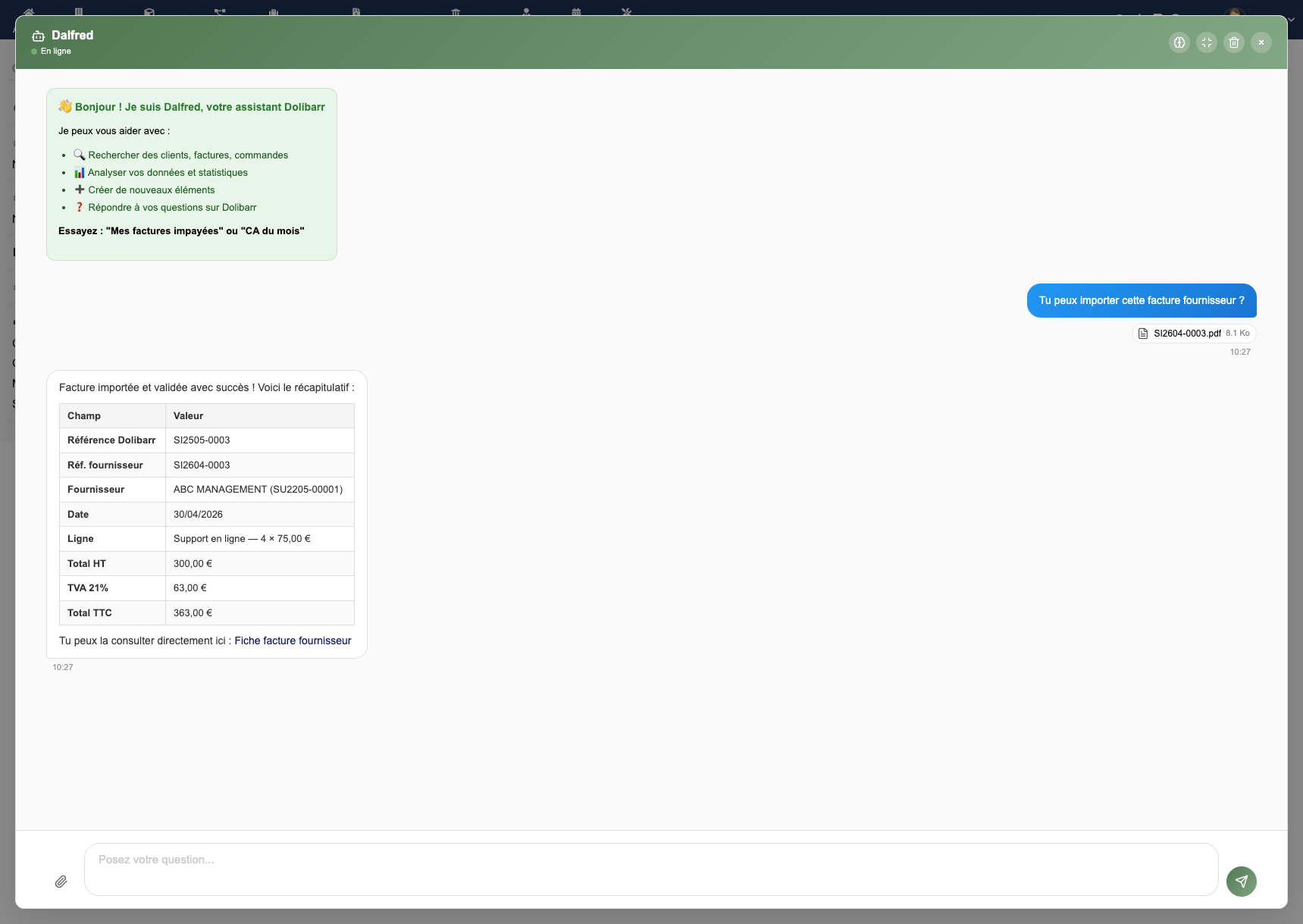
Attach a PDF file to a message and ask Dalfred to extract the information:
"Here is the supplier invoice received by email — create the matching invoice in Dolibarr"
Behaviour by provider:
- Recent compatible Anthropic, Google Gemini and OpenAI models — The PDF is sent natively to the model, which reads the content, OCR and charts. Native PDF support depends on the selected model's capabilities.
- Mistral, Ollama, others — Text is extracted server-side (PdfParser) and injected into the prompt
Limits: 10 MB per file, 5 files per message, 50 KB of extracted text for models without native PDF support.
Using MCP from an external client
There are two authentication methods, depending on the client.
claude.ai custom connector — OAuth 2.1 (no key to copy)
- In Dalfred, enable the option in the External MCP access administration tab (see External MCP access).
- In claude.ai, add a custom connector pointing to your Dolibarr MCP endpoint:
https://your-dolibarr.example/custom/dalfred/mcp.php. - claude.ai discovers the OAuth metadata automatically and redirects you to your Dolibarr login. Sign in with your normal account and approve the consent screen.
- The connector now acts with your Dolibarr user's permissions. Access uses PKCE (S256) and refresh-token rotation; server-side tokens are stored SHA-256 hashed, never in plain text.
Claude Code, Anthropic API or any CLI/HTTP MCP client — Dolibarr API key
These clients use a direct Dolibarr API key sent as a Bearer token:
Authorization: Bearer YOUR_DOLIBARR_API_KEY
The Dolibarr DOLAPIKEY header also works for clients that support that convention. Get an API key from your Dolibarr user account, then register the MCP server. For Claude Code:
claude mcp add dalfred --transport http \
  https://your-dolibarr.example/custom/dalfred/mcp.php \
  --header "Authorization: Bearer YOUR_DOLIBARR_API_KEY"
For the Anthropic API, add the server under mcp_servers in your request, using the same URL and Authorization header.
The External MCP access tab provides ready-to-copy versions of these examples, including a complete mcp.json snippet pre-filled with your Dolibarr URL.
Prerequisites and troubleshooting
- The Dolibarr REST API module must be enabled.
- Every request runs with the permissions of the user authenticated through OAuth or owning the API key.
- If authentication fails even though the header is correct, check that the web server passes the
Authorizationheader to PHP. Dalfred ships an.htaccessrule for this; custom Apache/PHP-FPM configurations may requireCGIPassAuth Onor an equivalent rewrite rule.
Multi-provider AI
Dalfred works with:
| Provider | Models | Hosting |
|---|---|---|
| Anthropic | Recent models in the Opus, Sonnet and Haiku families | Cloud (API) |
| OpenAI | Recent GPT and reasoning models | Cloud (API) |
| Mistral AI | Recent Mistral models | Cloud (API, European servers) |
| Recent Gemini Pro and Flash models | Cloud (API) | |
| Ollama | Llama, Mistral, Phi, any open-source model | Self-hosted |
Maximum privacy: With self-hosted Ollama, no data ever leaves your infrastructure. Ideal for organisations with strict GDPR constraints or data sovereignty requirements.
Security
Permissions
- Dolibarr permissions — Each user only accesses the data their Dolibarr permissions allow (same API, same restrictions)
- API key isolation — Each user has their own Dolibarr API key — no shared accounts
- Per-group permissions — The administrator decides which tools are available to which user groups
Activity log
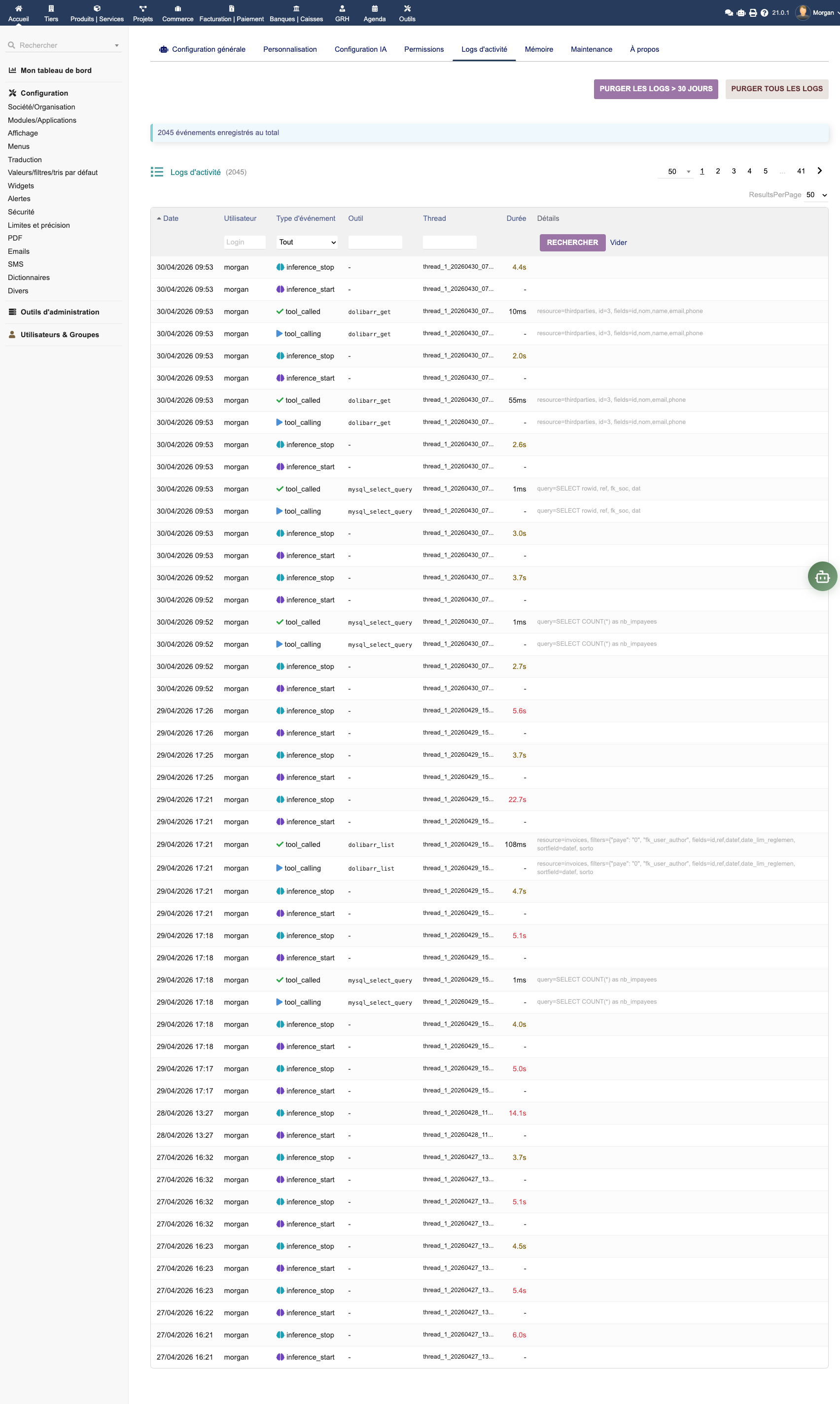
The activity_log.php page records every interaction with Dalfred:
- Who — User who issued the request
- When — Timestamps of the request and the response
- What — Question asked, MCP tools executed, tokens consumed
- Cost — Token cost estimation (useful for budget tracking)
- Errors — Failed requests with error details
Filter by user, by period, by tool type. Export to CSV for analysis.
Additional protections
- Encryption — AI provider API keys are stored encrypted in the Dolibarr database
- SQL whitelist — Only authorised tables are accessible via SQL tools (read-only)
- Anti-spoofing validation — Attachments are validated (a file named
.pdfbut detected astext/plainis rejected)
Maintenance and diagnostics
The maintenance.php page lets you check the health of your installation:
- AI connection — Connectivity test with the configured provider
- MCP server — Verifies the MCP server is functioning
- PHP extensions — Validates required extensions
- Permissions — Checks write permissions on directories
- Knowledge base — Data integrity check
Debug logs
When debug mode is enabled (general settings):
- Detailed logs are written to
documents/dalfred/logs/ - Each interaction generates an entry with the request, response and tools used
- API errors are recorded with their code and full message
Common issues
Dalfred does not respond or returns an error
- Check your API key in the AI configuration
- Run the connection test from the Maintenance page
- Verify that your server can reach the provider's API (no firewall blocking)
- With Ollama: check that the Ollama service is running and the URL is reachable
MCP tools are not working
- Check that the tools are enabled in Tool permissions
- Verify the user belongs to an authorised group
- Inspect the activity log to identify the precise error
Slow responses or timeouts
- Check server load and internet connection
- Try a lighter model (Haiku, a compact OpenAI model, or a lighter Mistral model)
- Increase your server's PHP timeout (
max_execution_time)
High API costs
- Inspect the activity log to identify the most active users
- Switch to a less expensive model for simple tasks
- Consider self-hosted Ollama (free after the hardware investment)
Missing icons after update If you see empty squares instead of icons after installing from the DoliStore ZIP, install the latest available version.
FAQ
Which AI providers are supported?
Dalfred supports Anthropic (Claude), OpenAI (GPT), Mistral AI, Google (Gemini) and Ollama (self-hosted). You can switch from one provider to another without reinstalling the module.
Is my data sent to the AI provider?
With a cloud provider (Anthropic, OpenAI, Mistral, Google), yes — the data needed to answer your question is transmitted via their API. Consult their respective privacy policies.
With self-hosted Ollama, no data ever leaves your infrastructure. This is the recommended solution for strict GDPR constraints or sensitive data.
Can I use MCP without the chat interface?
Yes. Enable External MCP access, then connect claude.ai through OAuth 2.1 or use a Dolibarr API key with Claude Code, the Anthropic API, or another compatible CLI/HTTP MCP client. Each request keeps the authenticated user's Dolibarr permissions.
How much does Dalfred cost?
€299 excl. VAT — One-time purchase, 1 year of updates included. No subscription on the module itself. Only AI API costs are added based on your usage (or free with Ollama).
Can Dalfred modify data in Dolibarr?
Yes, if modification tools are enabled in the permissions. The administrator precisely controls which tools are available and to which groups. By default we recommend enabling only query tools, then expanding gradually.
How do I update the module?
- Download the new version from the DoliStore
- Replace the files in
htdocs/custom/dalfred/ - Open Dolibarr — the module will detect the update and apply migrations automatically
- Check the Maintenance page to verify everything is working
Are Smart Queries shareable?
Yes. When creating a Smart Query, you can mark it as shared to make it available to the whole team. Ideal for standardising business reports (monthly revenue, top customers, supplier outstanding).
Does Dalfred work with Multicompany?
Yes. Each Dolibarr entity can have its own configuration (AI provider, branding, permissions). Data remains strictly isolated between entities.
Where can I find help?
- E-dem support — Contact us for any technical question
- Product page — /en/products/dalfred to discover the features
- Anthropic documentation — docs.anthropic.com
- OpenAI documentation — platform.openai.com
- Ollama documentation — ollama.com/docs